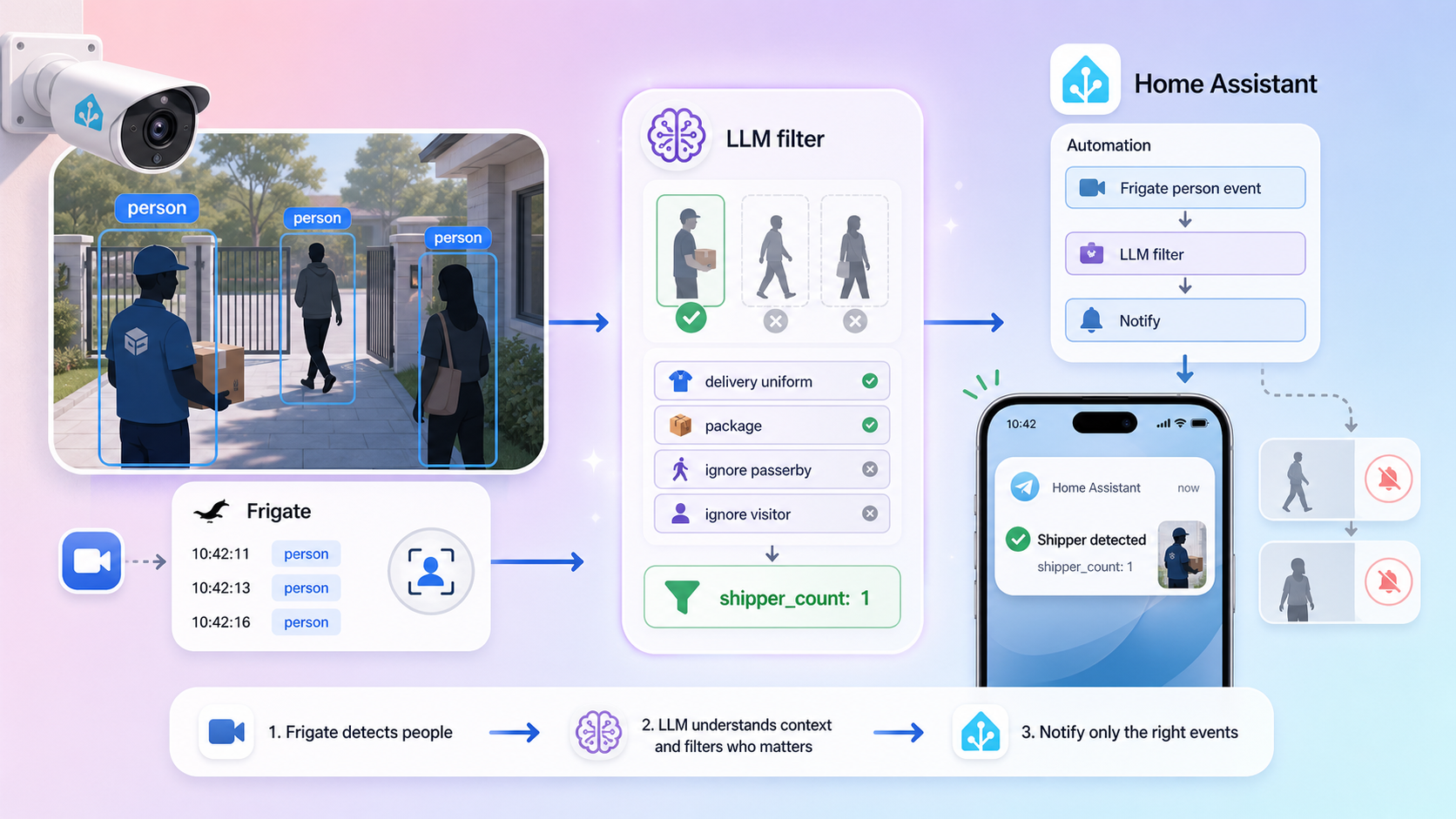
Layered AI Recognition with Frigate and LLM in Home Assistant
Common security cameras (IMOU, Ezviz,...) usually only recognize at a basic level, such as the presence of a person/motion. When integrated into Home Assistant for automation, you will encounter quite a few false alarms.
)
Many homelab enthusiasts use Frigate as an initial local AI layer; this approach is great because it is fast and gives control over data. However, Frigate still primarily detects based on object labels (person, car, dog...), and is not yet strong at understanding occupational context.
For example: there is a person standing in front of the gate, but is it a guest, a neighbor, or a delivery person?
The solution in this article is to layer the recognition:
- Frigate: quickly filters events containing
person. - LLM in Home Assistant: deeply analyzes the context to count delivery people.
- Counter sensor: stores the number of delivery people to trigger notification automation.
Deployment Architecture
Workflow:
- Frigate publishes events to the MQTT topic
frigate/events. - Automation 1 in HA receives the event, keeping only events with the
personlabel. - HA calls
ai_task.generate_data(Gemini Flash) to analyze the gate camera. - The LLM returns a string containing the number of delivery people.
- The automation parses the number and writes it to
counter.shipper_count. - Automation 2 monitors
counter.shipper_count > 0to send a Telegram message. - The counter resets after 5 minutes.
Part 1: Prepare required entities and integrations
1) Mandatory requirements
- Frigate + MQTT already functioning.
- Camera entity in Home Assistant (e.g.,
camera.gate_camera). - AI Task integration in HA (to call the
ai_task.generate_dataservice). - Telegram bot integration (if you want to send notifications like the example).
2) Create a counter sensor to store the delivery person count
Go to Settings → Devices & Services → Helpers → Create Helper → Counter
- Name:
shipper_count - Entity ID:
counter.shipper_count - Initial value:
0 - Step:
1
If you configure YAML directly, add it to thecounter:section inconfiguration.yaml.
Part 2: Create the delivery person recognition automation (AI layer)
You can create this via the UI Automation Editor or paste the YAML. Below is the standardized version based on the actual flow you are using.
alias: Recognize human shipper at the gate
description: ""
triggers:
  - topic: frigate/events
    trigger: mqtt
conditions:
  - condition: template
    value_template: "{{ trigger.payload_json['after']['label'] == 'person' }}"
actions:
  - action: ai_task.generate_data
    response_variable: shipper_count
    data:
      instructions: >-
        You are an image analysis assistant.

        Task: Count the number of delivery people (shippers) standing in front of the gate in the image.

        Rules:
        - Only rely on occupational identification signs: delivery uniform,
          helmet with logo, carrier jacket, delivery bag,
          cargo box, delivery motorcycle, delivery behavior.
        - Do not identify personal identities.
        - Only count people with clear signs of being a delivery person.
        - Ignore passersby or people without delivery person signs.
        - If the gate is unclear or the camera angle does not show the gate,
          only count delivery people in the area in front of the camera.
        - Return exactly one line in the format: "shipper_count: "

        Output: Only a single line, no line breaks.
      entity_id: ai_task.gemini_flash
      attachments:
        media_content_id: media-source://camera/camera.gate_camera
        media_content_type: application/vnd.apple.mpegurl
        metadata:
          title: Gate Camera
          thumbnail: /api/camera_proxy/camera.gate_camera
          media_class: video
          children_media_class:
          navigateIds:
            - {}
            - media_content_type: app
              media_content_id: media-source://camera
      task_name: Camera AI

  - if:
      - condition: template
        value_template: >-
          {{ (shipper_count['data'] | regex_findall_index('([0-9]+)', 0) | int(0)) > 0 }}
    then:
      - action: counter.set_value
        data:
          value: >-
            {{ shipper_count['data'] | regex_findall_index('([0-9]+)', 0) | int(0) }}
        target:
          entity_id:
            - counter.shipper_count

      - action: camera.snapshot
        data:
          filename: /media/snapshots/gate_snapshot1.jpg
        target:
          entity_id: camera.gate_camera

      - delay:
          minutes: 5

      - action: counter.reset
        data: {}
        target:
          entity_id:
            - counter.shipper_count
mode: single
Because LLMs can return flexible text, using the regex ([0-9]+) is a simple and stable way to prevent parsing errors.Part 3: Create notification automation when a delivery person arrives
alias: Notify when delivery person is at the gate
description: ""
triggers:
  - trigger: numeric_state
    entity_id:
      - counter.shipper_count
    above: 0
conditions: []
actions:
  - action: telegram_bot.send_photo
    data:
      caption: AI detected a delivery person standing at the gate
      file: /media/snapshots/gate_snapshot1.jpg
      inline_keyboard:
        - Retake gate and garage camera snapshot:/snapshot
mode: single
You can replace telegram_bot.send_photo with:
notify.mobile_app_if you want to push a notification to your phone.tts.speakif you want indoor speakers to announce it.
Part 4: Step-by-step testing
Test 1: Check events from Frigate
- Go to Developer Tools → MQTT → Listen to a topic
- Enter
frigate/events - Walk across the camera zone to see if the payload is pushed.
Test 2: Check if AI service runs
- Go to Developer Tools → Actions
- Test run
ai_task.generate_datawith the gate camera. - Verify the response contains a number (e.g.,
shipper_count: 1).
Test 3: Check the counter
- Go to States, see if
counter.shipper_countchanges to > 0 when there is a delivery person. - After 5 minutes, the counter must automatically reset to 0.
Test 4: Check Telegram notifications
- Ensure the bot has permission to send photos to the chat/group.
- Check that the file
/media/snapshots/gate_snapshot1.jpghas been created.
Tips to reduce false alarms and optimize costs
- Only call the LLM after the local filtering layer (
label == person). - Use a lightweight model (
gemini_flash) for near real-time tasks. - Standardize output prompts for stable parsing.
- Add a cooldown (delay/reset counter) to avoid notification spam.
- Only send necessary images/clips to reduce data usage and protect privacy.
Quick Troubleshooting
1) LLM number parsing error
Symptom: counter does not increase.
Solution:
- Temporarily output
{{ shipper_count['data'] }}to log/notify to see the actual response. - Keep the prompt forcing a 1-line format + regex fallback
([0-9]+).
2) Not receiving Telegram images
- Check the path
/media/snapshots/gate_snapshot1.jpg. - Ensure the recognition automation runs up to the
camera.snapshotstep.
3) Automation not triggering
- Double-check that the MQTT topic is correctly
frigate/events. - Check if the payload contains
after.label. - Verify that the Frigate camera and the camera entity in HA map to the correct name.
Conclusion
The strength of this model is not in replacing Frigate with an LLM, but rather combining the 2 layers:
- Frigate processes quickly and cheaply locally.
- The LLM adds contextual understanding for better decision-making.
When you set up the pipeline correctly, you will significantly reduce false alarms and can build smarter automations such as opening the gate for delivery people, creating delivery logs, or analyzing behavior in front of the gate.