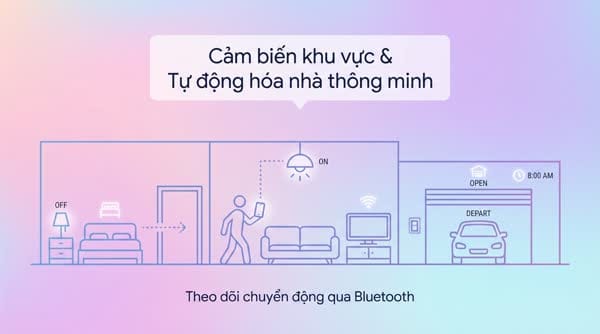
Area sensor tracking your movement when you pass through rooms
Hãy thử tưởng tượng bạn di chuyển từ phòng ngủ qua phòng khách và muốn các thiết bị trong phòng ngủ tự động tắt, phòng khách tự động bật. Từ khóa: home assistant, docker, ai.
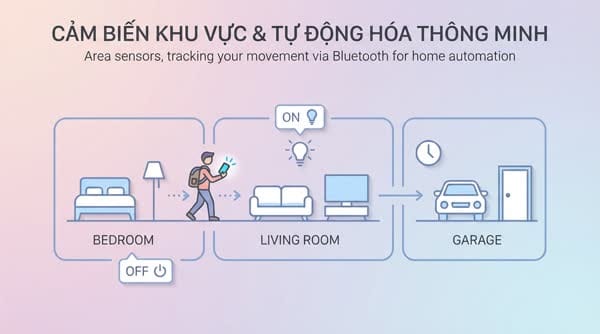
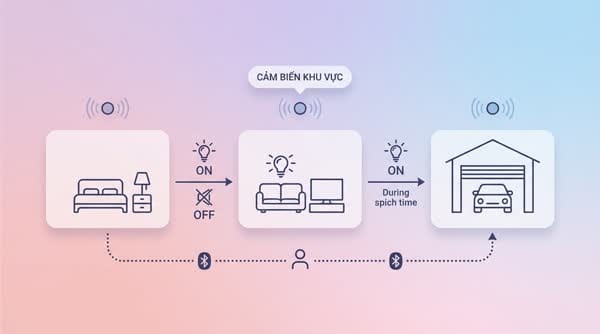
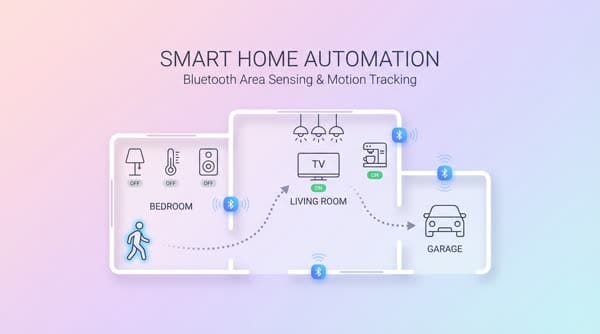
Try to imagine you move from the bedroom through the living room and want the devices in the bedroom to automatically turn off, and the living room devices to automatically turn on. Or when you go from the living room to the garage at the time you usually leave for work, the garage door automatically opens.
In this day and age, almost everyone has some kind of electronic device on them, whether it’s a smartphone, smartwatch, or smart ring. In this project, I’ll use the Bluetooth signal from these devices to determine a person’s location in specific areas of the house with extremely high accuracy.
[!summary] One of the common misconceptions Usually, projects related to Bluetooth tracking fail because this technology is limited in how often it can send signals in a given period, so it’s very easy to track incorrectly. With this project I’ve been able to reduce the error rate to a minimum, and it has been running very stably for many months now.
Implementation idea
We need a device that acts as a reader of the MAC addresses of Bluetooth devices in order to determine distance using RSSI, similar to how bats determine targets while moving. Here I’ll choose an ESP32-C2 board to run the firmware that reads Bluetooth signals.
There is a dedicated project for this part here: https://espresense.com/. I tried this project but one weakness is that it creates a lot of presence sensors for a single device, and it’s easy to end up being detected in 2 rooms at the same time because both readers pick up the signal, no matter how carefully I calibrate the RSSI values. Because of the nature of Bluetooth being easily blocked, even a small change like putting the phone in thicker pants pockets can distort the signal level at the receiver.
But what if we create a network of these Bluetooth readers so that they take turns receiving signals, similar to how a WiFi Mesh works? That’s why I came to the concept of a Bluetooth Proxy. https://esphome.io/projects/index.html
Flashing Bluetooth proxy firmware for ESP32
Requirements
- ESP32-C2 board or any ESP32 that supports Bluetooth
- USB cable with USB-C or microUSB that supports data transfer to connect the board to your computer
- Home Assistant in the latest version (Docker installation is also fine)
- A really beautiful soul to ensure success on the first try
Steps
- Hold the Boot or Flash button on the ESP board
- Click Connect to connect to the board and flash it. Remember to select "Erase all"
- After flashing is complete, wait a moment for the board to boot up, then click Next to connect it to your home Wi‑Fi
- On the web interface it will indicate that the connection is complete
Plug in the cable while holding the button down; if the LED stays off, it has successfully entered flash mode.

Connecting the board to HASS
Connect the ESP32 board to HASS
https://github.com/esphome/esphome Add the ESPHome add-on so it’s convenient to manage these ESP boards, and it will automatically connect to HASS as well.
Install Bermuda BLE
Via HACS, install the integration called Bermuda BLE Trilateration, which combines these Bluetooth proxies and performs tracking of Bluetooth devices in the area.

After downloading, go to Add Integration and add the Bermuda integration. Click through a few Next steps to finish. Now on to the configuration.
Configuring Bermuda BLE Trilateration
Device configuration
In the Select Devices section, click there and select the devices with clearly displayed names that you want to track.
Once selected, it will display this device as a device entity with basic sensors.

If the list does not show the device you want, typically with Apple devices it won’t show up because they use random MACs, so you’ll need to use the method below to obtain a secret key segment for tracking.
Finding the Bluetooth MAC address
Use macOS to find iOS/iPadOS/WatchOS MAC addresses:
- On macOS, make sure you’re signed in with the iCloud ID linked to your device.
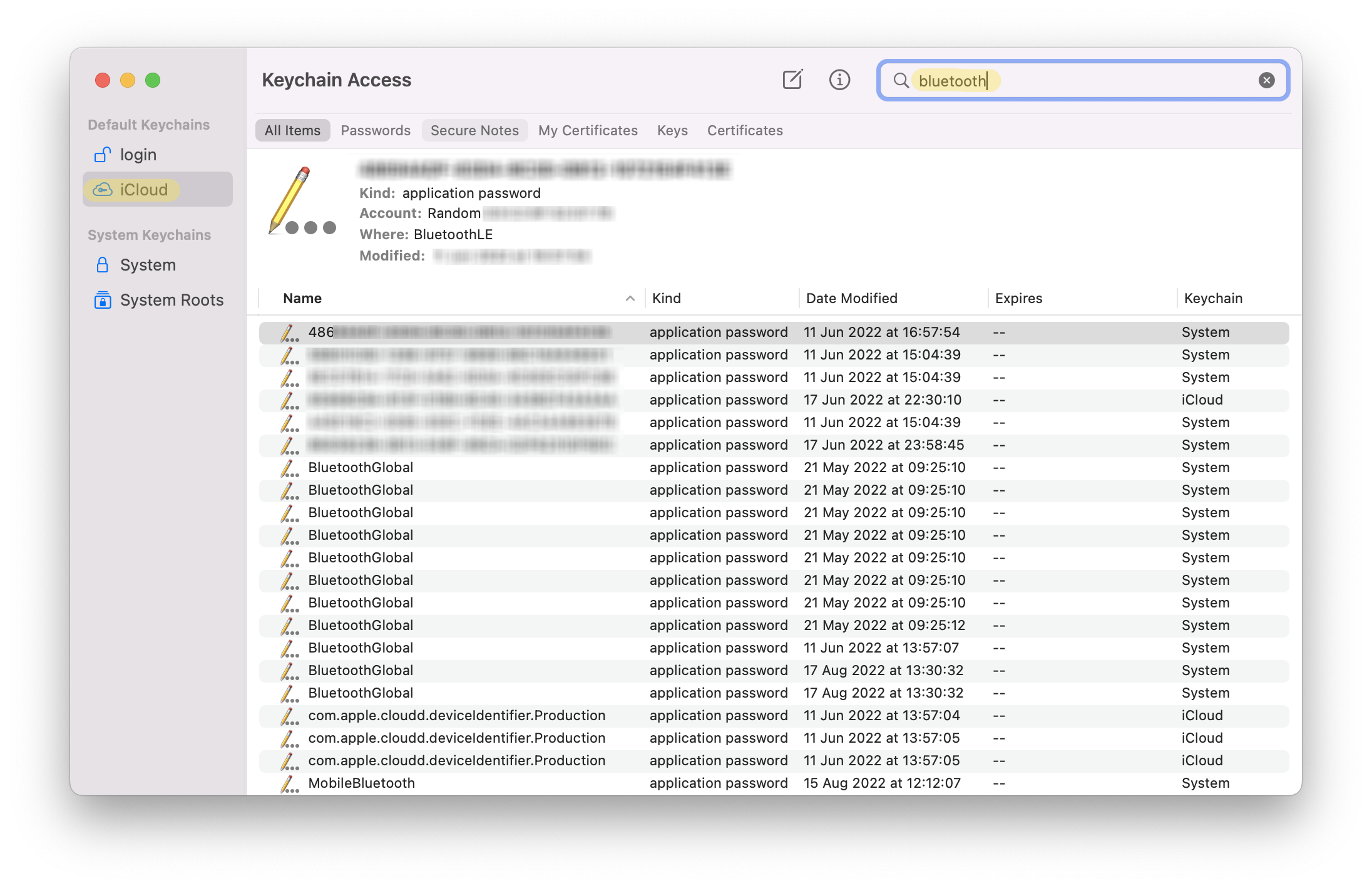
- Launch the Keychain Access app.
- In the left sidebar, click iCloud.
- At the top right in the search bar, type
bluetooth. - On your Apple Watch, go to Settings > About, scroll down to find the Bluetooth address, in the format:
XX:XX:XX:XX:XX:XX - Open each entry to find the one linked to your Apple Watch. The Account field must match the Bluetooth address on your watch, in the format:
Public: XX:XX:XX:XX:XX:XX. - Paste the content into the form below and click 'Decode' to convert this content into an IRK. I’m only translating the instructions and attaching the original guide with the tool so you can retrieve the IRK yourself: https://espresense.com/beacons/apple
Click on Show password. Enter your macOS password twice and then copy the content.
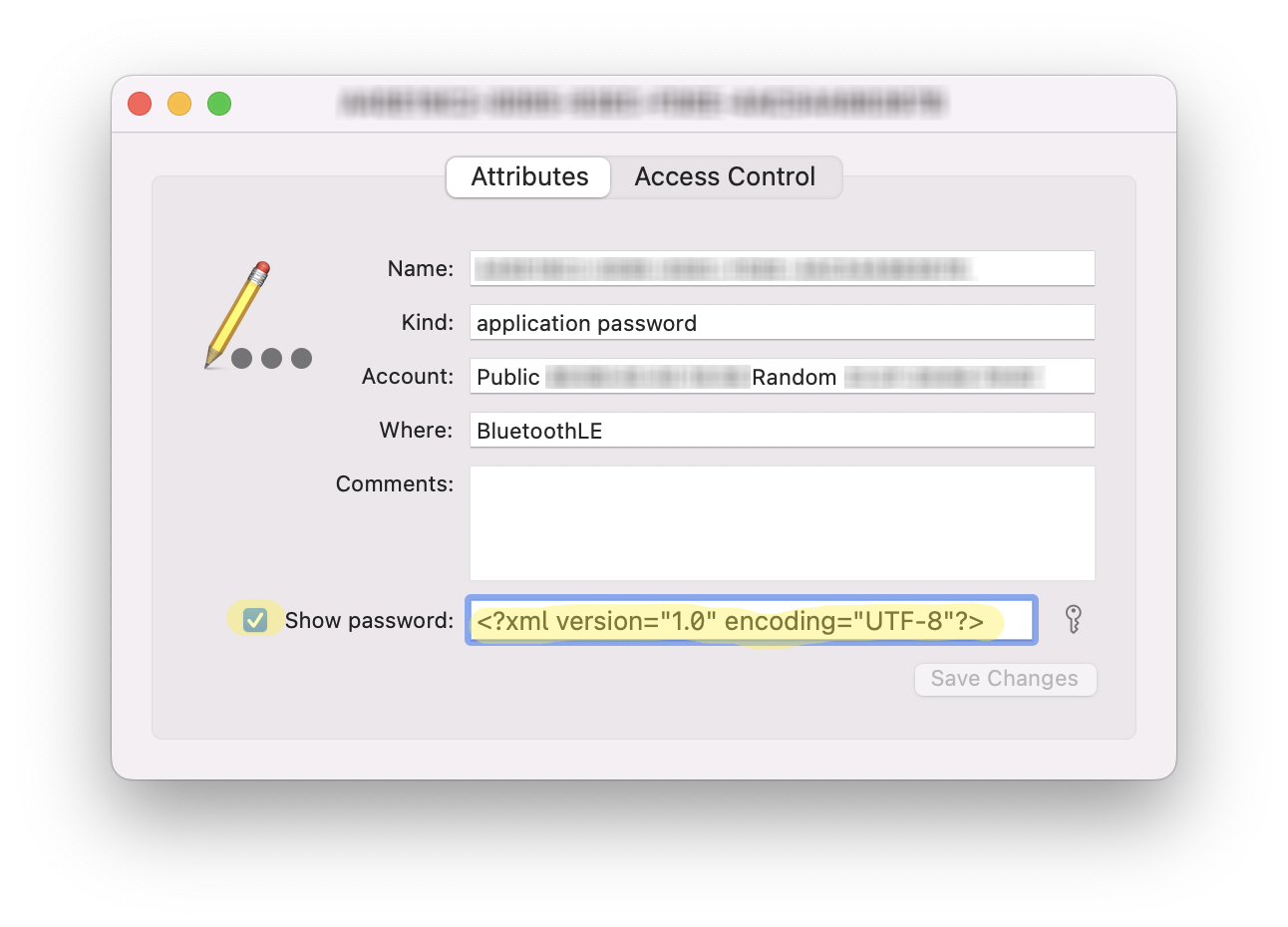
A list will appear with type application password.
Enter this Private BLE Device code in the configured devices section and it will add a new device.
[!tip] For Android you just need to install the Home Assistant app, enable the Beacon monitor sensor, and the Transmitting ID code will show up right away.
Distance configuration
For distance detection configuration (Global Options), I use the settings below; you can tweak the parameters until you’re satisfied.