Guide to Pairing QUOYA MC08 Curtain Motor with Tuya/SmartLife and Setting Travel Limits via Remote
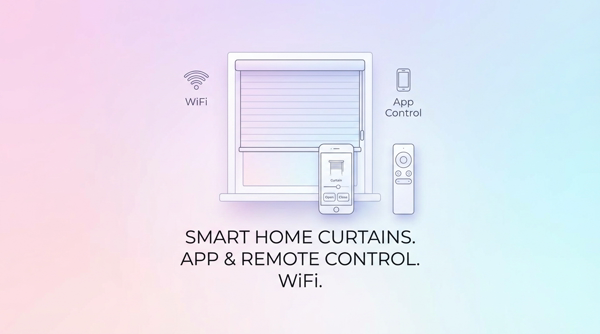
This document compiles the content from two QUOYA MC08 tutorial videos, helping you pair the curtain motor with the Tuya/SmartLife app and set travel limits using the remote.
Preparation
- Curtain motor already powered and comes with a three-button remote (Up – Stop – Down).
- Phone with the Tuya or SmartLife app installed (iOS/Android).
- 2.4GHz Wi-Fi network (visible SSID, password ready).
[!WARNING] Connection notes
- The motor does not support 5GHz Wi-Fi; if your router broadcasts 2.4GHz/5GHz under the same SSID, separate the networks or temporarily disable 5GHz while pairing.
- Grant Location permission to the app, otherwise the Wi-Fi list will be empty.
Part 1 · Pairing the motor with the SmartLife app
- Create an account and select the device
- Sign up/log in to the app, tap
+→ Add Device. - Go to the Small Home Appliances category → select Curtains (Wi-Fi) since there is no separate item for blinds.
- Prepare Wi-Fi configuration
- Enter the SSID/password of your 2.4GHz network.
- When the app asks about the indicator status, even though the LED on the motor is blinking fast, still choose “Indicator blinking slowly” to switch to AP (Access Point) mode.
- Ignore the “reset device” instructions shown on screen because the motor will be put into pairing mode in the next step.
[!TIP] Why choose “blinking slowly”?
The SmartLife app uses the “blinking slowly” state to trigger the AP procedure. Even though the motor’s indicator is actually blinking fast, still select this option to ensure successful pairing.
- Put the motor into pairing mode
- On the remote, press and hold Stop + Down together for about 5 seconds until the indicator on the motor blinks, confirming it has entered Wi-Fi broadcast mode.
- Connect to the Wi-Fi network broadcast by the motor
- Go back to your phone’s Wi-Fi settings, refresh the list and select the network named in the format SmartLife-xxxx.
- Keep the connection even if the phone reports “No Internet”; if a pop-up appears, choose Continue/Stay connected.
- Finish in the app
- Return to SmartLife and wait for the app to automatically discover and add the motor (takes about 1 minute).
- Rename the device using the pencil icon to make it easier to manage (for example, “Bedroom curtains”).
Part 2 · Setting open/close travel limits using the remote
The same remote is used for both limits. Perform the following steps in order; the motor’s red indicator will blink while it is in setup mode.
- Set the open position (Top limit)
- Hold the Stop button until the indicator blinks red.
- Press Up to move the curtain to the maximum open position you want.
- When the curtain reaches the desired position, press Stop again to save the upper limit.
- Set the close position (Bottom limit)
- Again, press and hold Stop until the indicator blinks red.
- Press Down to move the curtain to the fully closed position (or the position you want).
- Press Stop to save the lower limit. The motor will vibrate slightly/the indicator will blink to confirm.
- Check operation
- Press Up and Down to test. The curtain will stop exactly at the two positions you have just set.
- If anything is incorrect, repeat the corresponding steps to overwrite with new limits.
After completing both parts, you can control the curtains via the SmartLife app, set automatic schedules, and integrate with other smart platforms through Tuya.