
Preparation
Preparation
- Zigbee USB
- Pi-III (or any Linux computer)
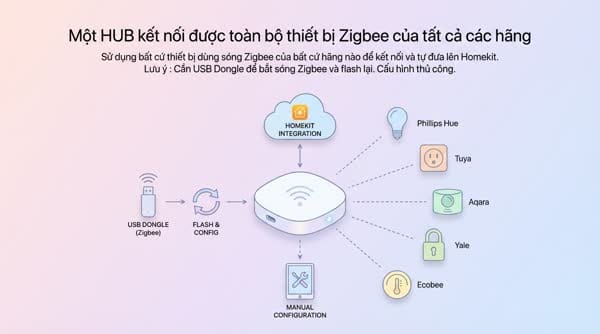
Using Pi-III as a multi-purpose Zigbee HUB
Set up using Homebridge firmware via Raspberry Pi Imager to simplify the setup process. Works with all devices using Zigbee signals regardless of manufacturer. Automatic installation command to run related services
curl -sk https://raw.githubusercontent.com/leolionart/smarthome/main/Z2M/ZigbeeHub.sh | sudo bash -
Copy the command above and paste it into the Terminal to perform bulk installation and configuration of the services.
Here I use an old Raspberry Pi attached to a Zigbee receiver and place it near the third-party sensor area that needs to be brought into Homebridge. This device has weak specs so I don’t put many functions on it, it only serves as a backup boot system when the main HUB has issues.
Included services
| Service | Description |
|---|---|
| Docker | Easily install pre-packaged services |
| Portainer | Visual management on a web-based platform |
| Homebridge | Bring important devices into a separate Home |
| Mqtt Broker | Receive events sent from services that operate via this method |
| Zigbee to Mqtt | Trigger events and send them to the MQTT service |
Note: You need a USB dongle to receive Zigbee signals and re-flash the firmware from https://dialedin.com.au/blog/sonoff-zbdongle-e-rcp-firmware.
Manual configuration
In case the IP address changes or the above configuration is not correct and you cannot access the web interface, run the following commands to make adjustments.
Step 1: Check which port the dongle is plugged into
ls -l /dev/serial/by-id
The result will look like this. This is the ID of the USB port that is connected to the USB dongle.
Step 2: Edit the data configuration file
ls
cd data
ls
sudo nano ./data/configuration.yaml
The standard configuration file will look like this; you need to adjust it accordingly to be able to access the web interface.
homeassistant: false
frontend: true
mqtt:
  base_topic: zigbee2mqtt
  server: mqtt://192.168.88.11:1883
serial:
  port: /dev/ttyUSB0
You need to adjust the following:
- frontend = true so you can access the Z2M web interface via IP
- In the MQTT server line, enter the IP address of the machine running MQTT, leaving the port as the default 1883
- The serial port must be set according to the configuration from step 1
In case of errors
Error: Failed to connect to the adapter (Error: SRSP - SYS - ping after 6000ms)
Add the following lines to the config file
serial
  port: /dev/ttyUSB0
  adapter: ezsp
If it still doesn’t run, it may be because the flashed firmware is not compatible. Carefully review the cases and follow the instructions here:
https://www.zigbee2mqtt.io/guide/installation/20_zigbee2mqtt-fails-to-start.html