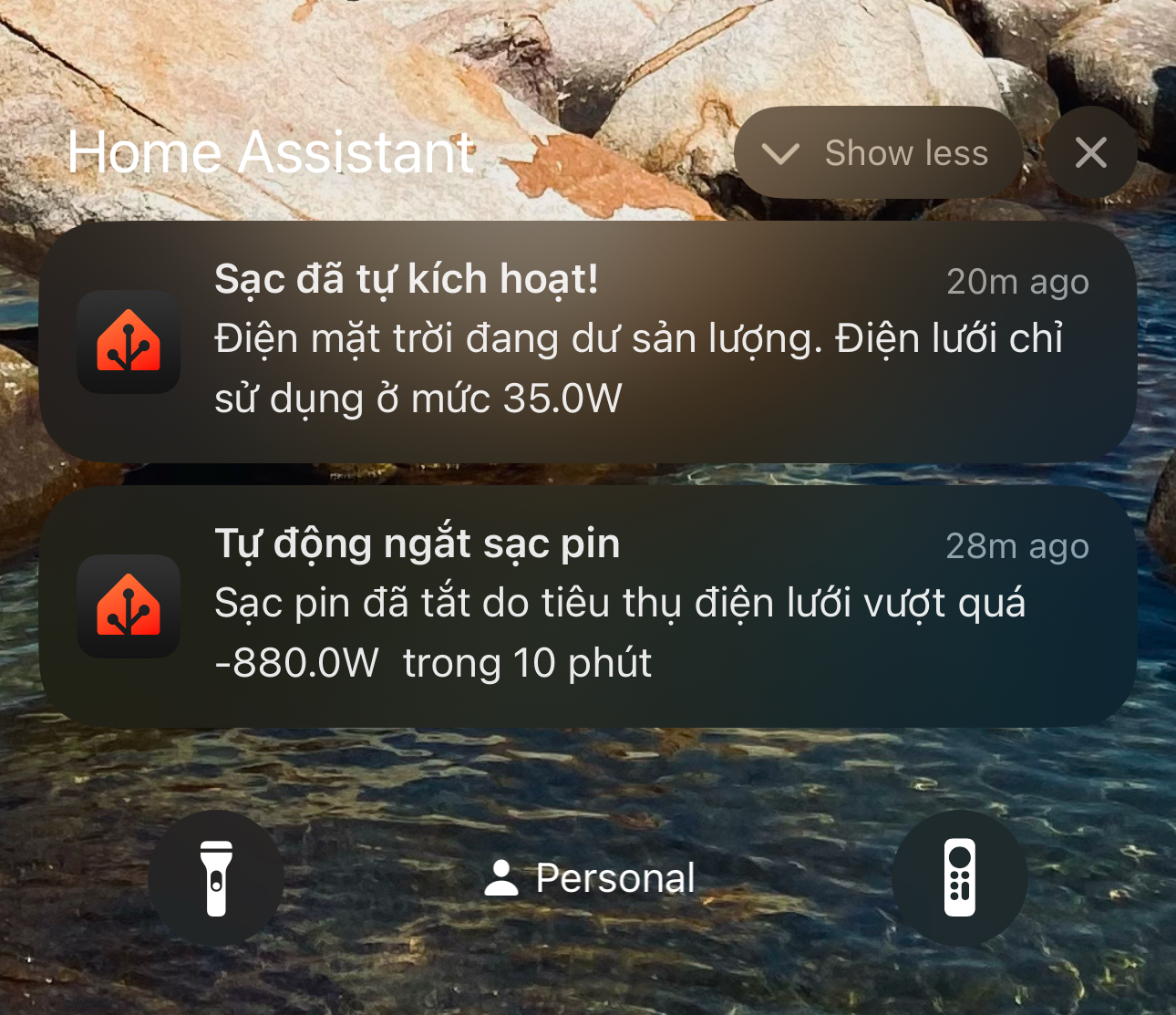
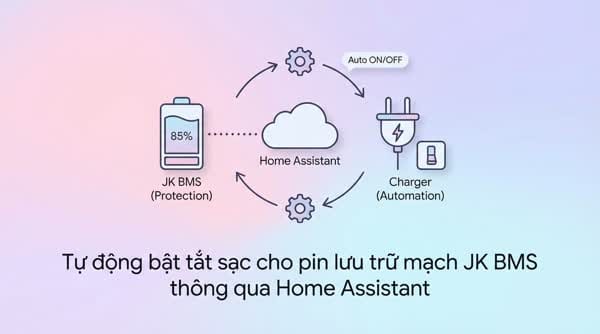
Automatically Turning Battery Charging On and Off for JK BMS Storage Batteries via Home Assistant
Surely many of you here are using a JK board to manage your storage batteries, and every time you want to check information about the battery you have to go near the battery pack Keywords: home assistant, docker, mqtt.

Many of you here are probably using JK boards to manage your storage batteries, and every time you want to check information about the battery you have to go close to the battery pack to use the JK BMS app to connect and view it, and you also can’t view the history. For those using a board that communicates with the inverter, there are still certain limits on what information you can see on the battery.
For those using smart homes who already have a Home Assistant system in place, I’ve figured out a way to connect this system to the battery’s BMS and have been running it for 2 months now. The steps are as follows.
Connecting JK BMS to HASS (Home Assistant)
Requirements
- Use HASS OS (Home Assistant). HASS installed via Docker is not supported, meaning your HASS Settings must have an Add-on section.
- The device running HASS must support Bluetooth or have a USB Bluetooth dongle attached.
Tutorial video
Step-by-step guide
Go to GitHub at https://github.com/fl4p/home-assistant-addons. Click the button below to go directly to the installation section. Or manually add the repo above in the Add-on section.

[!danger] Important note After you have successfully configured the BMS in the Add-on, you will no longer be able to connect to the BMS using the phone app. The BMS does not allow two devices to connect at the same time.
- Install and start the add-on. Carefully check the Log section to ensure any errors are displayed by the system. Find ways to fix these errors (usually related to Bluetooth; if the device doesn’t have it, you can’t use this).
- Carefully review the logs; the MAC addresses of nearby devices that it scans will be shown and it will display the name of your BMS board. If you have renamed it, the new name will appear; by default it will show something like jk-xxx.
Configure it as shown below; get the MAC Address information from the log in the previous step.
You need to configure an MQTT broker so this add-on can send information into the HASS system as sensors. For the alias, you should name it the same way I did so that the configuration parts in the next steps will appear correctly without needing to edit the variables.
To install the MQTT broker (if you don’t yet know about MQTT, read here), go to HASS, then go to the Add-on Store. Search for the Add-on named Mosquitto Broker.
Click Install to install.
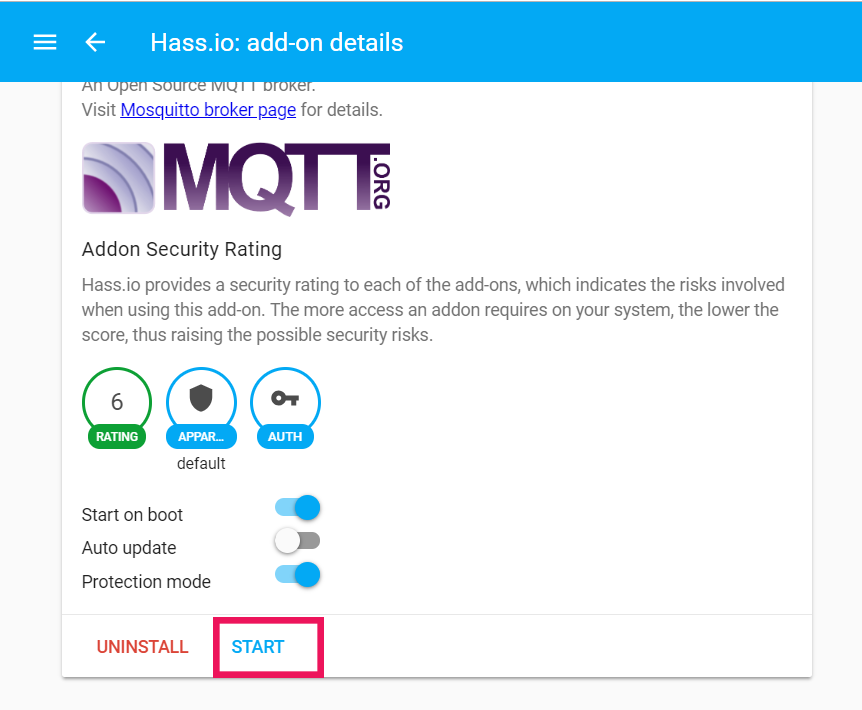
We need to declare information for the MQTT broker:
logins:
- username: user
password: mqtt_pass
After configuration is done, click the Start button to start MQTT.
Display on HASS
These are the parameters I use on HASS to monitor battery information, to know the cell imbalance, discharge/charge current in order to detect anomalies (or just to monitor for fun).
This is the card configuration I programmed to be as similar as possible to the JK BMS app so you can view information about the battery cells. To quickly change the variables, copy the code below into ChatGPT and then add the following description:
Replace the variables binary_sensor.bms* in the following code with the new device variables named binary_sensor.your_bms_name
type: horizontal-stack
cards:
  - type: gauge
    name: Max Cell
    entity: sensor.bms_bt_monitor_cell_volt_max
    min: 3.1
    max: 3.55
    needle: true
    severity:
      green: 3.2
      yellow: 3.5
      red: 3.1
  - type: gauge
    entity: sensor.bms_bt_monitor_current
    min: -25
    max: 25
    severity:
      green: 0
      yellow: 10
      red: 20
    needle: true
  - type: gauge
    entity: sensor.bms_bt_monitor_soc
    needle: true
    min: 0
    max: 100
    segments:
      - from: 0
        color: "#ff0d00"
      - from: 2.5
        color: "#ff1a00"
      - from: 5
        color: "#ff2600"
      - from: 7.5
        color: "#ff3300"
      - from: 10
        color: "#ff4000"
      - from: 12.5
        color: "#ff4c00"
      - from: 15
        color: "#ff5900"
      - from: 17.5
        color: "#ff6600"
      - from: 20
        color: "#ff7300"
      - from: 22.5
        color: "#ff8000"
      - from: 25
        color: "#ff8c00"
      - from: 27.5
        color: "#ff9900"
      - from: 30
        color: "#ffa600"
      - from: 32.5
        color: "#ffb200"
      - from: 35
        color: "#ffbf00"
      - from: 37.5
        color: "#ffcc00"
      - from: 40
        color: "#ffd900"
      - from: 42.5
        color: "#ffe600"
      - from: 45
        color: "#fff200"
      - from: 47.5
        color: "#ffff00"
      - from: 50
        color: "#ffff00"
      - from: 52.5
        color: "#f2ff00"
      - from: 55
        color: "#e6ff00"
      - from: 57.5
        color: "#d9ff00"
      - from: 60
        color: "#ccff00"
      - from: 62.5
        color: "#bfff00"
      - from: 65
        color: "#b2ff00"
      - from: 67.5
        color: "#a6ff00"
      - from: 70
        color: "#99ff00"
      - from: 72.5
        color: "#8cff00"
      - from: 75
        color: "#80ff00"
      - from: 77.5
        color: "#73ff00"
      - from: 80
        color: "#66ff00"
      - from: 82.5
        color: "#59ff00"
      - from: 85
        color: "#4dff00"
      - from: 87.5
        color: "#40ff00"
      - from: 90
        color: "#33ff00"
      - from: 92.5
        color: "#26ff00"
      - from: 95
        color: "#19ff00"
      - from: 97.5
        color: "#0dff00"
type: custom:stack-in-card
keep:
margin: 0px
box_shadow: false
background: false
cards:
- type: grid
square: false
columns: 3
cards:
- type: markdown
content: >-
<center>Charge: <b>{% if
states('binary_sensor.bms_bt_monitor_charge_switch') == 'on' %} <font
color=#41CD52>{{ states('binary_sensor.bms_bt_monitor_charge_switch')
| upper }}</font> {% else %} <font color=red>{{
states('binary_sensor.bms_bt_monitor_charge_switch') | upper }}</font>
{% endif %}
- type: markdown
content: >-
<center>Discharge: <b> {% if
states('binary_sensor.bms_bt_monitor_discharge_switch') == 'on' %}
<font color=#41CD52>{{
states('binary_sensor.bms_bt_monitor_discharge_switch') | upper
}}</font> {% else %} <font color=red>{{
states('binary_sensor.bms_bt_monitor_discharge_switch') | upper
}}</font> {% endif %}
- type: markdown
content: >-
<center>Balance: <b> {% if
states('binary_sensor.bms_bt_monitor_balance_switch') == 'on' %} <font
color=#41CD52>{{ states('binary_sensor.bms_bt_monitor_balance_switch')
| upper }}</font> {% else %} <font color=red>{{
states('binary_sensor.bms_bt_monitor_balance_switch') | upper
}}</font> {% endif %}
- type: grid
square: false
columns: 2
cards:
- type: markdown
content: >-
<div style="text-align: left;"><b><font color=#41CD52 size=6>{{
states('sensor.bms_bt_monitor_voltage') }} V</font></b><br> Battery
Power: <font color=#41CD52>{{
states('sensor.bms_bt_monitor_power') }} W</font><br> Battery
Capacity: <font color=#41CD52>{{
states('sensor.bms_bt_monitor_capacity') | round(0) }} Ah</font><br>
Cycle Capacity: <font color=#41CD52>{{
states('sensor.bms_bt_monitor_cycle_capacity') | round(0) }}
Ah</font><br> Ave. Cell Vol.: <font color=#41CD52>{{
states('sensor.bms_bt_monitor_cell_volt_average') }} V</font><br>
Balance Cur.: <font color=#41CD52>{{
states('sensor.bms_bt_monitor_balance_current') }} A</font><br>
Battery T1: <font color=#41CD52>{{
states('sensor.bms_bt_monitor_temperatures_1') }} °C</font></div>
- type: markdown
content: >-
<div style="text-align: left;"><b><font color=#41CD52 size=6>{{
states('sensor.bms_bt_monitor_current') }} A</font></b><br> Remain
Battery: <font color=#41CD52>{{
states('sensor.bms_bt_monitor_soc') | round(0) }} %</font><br> Remain
Capacity: <font color=#41CD52>{{
states('sensor.bms_bt_monitor_capacity') | round(0) }} Ah</font><br>
Cycle Count: <font color=#41CD52>{{
states('sensor.bms_bt_monitor_num_cycles') | round(0) }}</font><br>
Delta Cell Vol.: <font color=#41CD52>{{
states('sensor.bms_bt_monitor_cell_volt_delta') }} V</font><br> MOS
Temp.: <font color=#41CD52>{{
states('sensor.bms_bt_monitor_mos_temperature') }} °C</font><br>
Battery T2: <font color=#41CD52>{{
states('sensor.bms_bt_monitor_temperatures_2') }} °C</font></div>
- type: grid
square: false
columns: 2
cards:
- type: markdown
content: >-
01. {% if
states('sensor.bms_bt_monitor_cell_volt_max') == '1' %} <font
color="#3090C7">{{ states('sensor.bms_bt_monitor_cell_volt_1') }}
V</font> {% elif states('sensor.bms_bt_monitor_cell_volt_min') == '1'
%} <font color="red">{{ states('sensor.bms_bt_monitor_cell_volt_1') }}
V</font> {% else %} {{ states('sensor.bms_bt_monitor_cell_volt_1') }}
V {% endif %} <br> 02. {% if
states('sensor.bms_bt_monitor_cell_volt_max') == '2' %} <font
color="#3090C7">{{ states('sensor.bms_bt_monitor_cell_volt_2') }}
V</font> {% elif states('sensor.bms_bt_monitor_cell_volt_min') == '2'
%} <font color="red">{{ states('sensor.bms_bt_monitor_cell_volt_2') }}
V</font> {% else %} {{ states('sensor.bms_bt_monitor_cell_volt_2') }}
V {% endif %} <br> 03. {% if
states('sensor.bms_bt_monitor_cell_volt_max') == '3' %} <font
color="#3090C7">{{ states('sensor.bms_bt_monitor_cell_volt_3') }}
V</font> {% elif states('sensor.bms_bt_monitor_cell_volt_min') == '3'
%} <font color="red">{{ states('sensor.bms_bt_monitor_cell_volt_3') }}
V</font> {% else %} {{ states('sensor.bms_bt_monitor_cell_volt_3') }}
V {% endif %} <br> 04. {% if
states('sensor.bms_bt_monitor_cell_volt_max') == '4' %} <font
color="#3090C7">{{ states('sensor.bms_bt_monitor_cell_volt_4') }}
V</font> {% elif states('sensor.bms_bt_monitor_cell_volt_min') == '4'
%} <font color="red">{{ states('sensor.bms_bt_monitor_cell_volt_4') }}
V</font> {% else %} {{ states('sensor.bms_bt_monitor_cell_volt_4') }}
V {% endif %} <br>
- type: markdown
content: >-
05. {% if
states('sensor.bms_bt_monitor_cell_volt_max') == '5' %} <font
color="#3090C7">{{ states('sensor.bms_bt_monitor_cell_volt_5') }}
V</font> {% elif states('sensor.bms_bt_monitor_cell_volt_min') == '5'
%} <font color="red">{{ states('sensor.bms_bt_monitor_cell_volt_5') }}
V</font> {% else %} {{ states('sensor.bms_bt_monitor_cell_volt_5') }}
V {% endif %} <br> 06. {% if
states('sensor.bms_bt_monitor_cell_volt_max') == '6' %} <font
color="#3090C7">{{ states('sensor.bms_bt_monitor_cell_volt_6') }}
V</font> {% elif states('sensor.bms_bt_monitor_cell_volt_min') == '6'
%} <font color="red">{{ states('sensor.bms_bt_monitor_cell_volt_6') }}
V</font> {% else %} {{ states('sensor.bms_bt_monitor_cell_volt_6') }}
V {% endif %} <br> 07. {% if
states('sensor.bms_bt_monitor_cell_volt_max') == '7' %} <font
color="#3090C7">{{ states('sensor.bms_bt_monitor_cell_volt_7') }}
V</font> {% elif states('sensor.bms_bt_monitor_cell_volt_min') == '7'
%} <font color="red">{{ states('sensor.bms_bt_monitor_cell_volt_7') }}
V</font> {% else %} {{ states('sensor.bms_bt_monitor_cell_volt_7') }}
V {% endif %} <br> 08. {% if
states('sensor.bms_bt_monitor_cell_volt_max') == '8' %} <font
color="#3090C7">{{ states('sensor.bms_bt_monitor_cell_volt_8') }}
V</font> {% elif states('sensor.bms_bt_monitor_cell_volt_min') == '8'
%} <font color="red">{{ states('sensor.bms_bt_monitor_cell_volt_8') }}
V</font> {% else %} {{ states('sensor.bms_bt_monitor_cell_volt_8') }}
V {% endif %} <br>
Some advanced scenarios you can use
Because the BMS board only plays the role of protecting the battery, it does not know when to turn off the charging system. I set up additional automations to check battery capacity and solar generation in order to appropriately switch charging on and off.
Requirements
- A smart switch rated for at least 15A.
- Use a charger that runs on 220V mains to charge the battery (because only this type needs to be cut off).
Possible scenarios
When it’s sunny enough, automatically turn on battery charging
When the sun goes down, automatically turn off charging
When the battery is full, automatically turn off charging
I also linked my load-following inverter to HASS via the manufacturer’s API. You can see if there is an available HASS integration plugin for your inverter brand on GitHub and give it a try. After linking, you can set up scenarios like the ones below.

Conclusion
The steps involved may be a bit tricky, especially when you encounter errors, so make sure to carefully read the add-on author’s instructions to find solutions. I also asked ChatGPT quite a lot during this project. I believe that even those who are not familiar with programming can absolutely do this. Wishing you success in your implementation.