Why Do You Need to Build Your Own AI Camera?
Vì sao cần tự làm AI Camera? Từ khóa: frigate, home assistant, proxmox.
Why do you need to build your own AI Camera?
There are 2 main reasons I wanted to do this project:
- Security: After several hacking incidents, I stopped using the manufacturer’s app to view my cameras and looked for a way to view and store everything locally instead.
- Improved accuracy and more control (over when alerts are triggered).
Requirements
- Raspberry Pi 4 with 4GB RAM or more. Or similarly powerful hardware; for example, I use Proxmox to set up a dedicated virtual machine for this task.
- A camera that supports IP connection so you can use RTSP or ONVIF to stream the signal.
What you get after completing the project
- No need to spend money on SD cards for each camera, and you don’t have to worry about losing all stored data on a camera if a thief destroys it.
- The camera can instantly recognize objects such as people, vehicles, and animals with very high accuracy. Using the manufacturer’s built-in features usually comes with at least a 1–2 second delay and often misidentifies insects or moving trees as human motion.
- You can create separate sensors for each area and object type to trigger appropriate automations.
How to install Frigate
You can install it by following the instructions here: https://docs.frigate.video/frigate/installation
I use Docker Compose to quickly deploy this service.
version: "3.9"
services:
  frigate:
    container_name: frigate
    privileged: true # this may not be necessary for all setups
    restart: unless-stopped
    image: ghcr.io/blakeblackshear/frigate:stable
    shm_size: 64mb # update for your cameras based on calculation above
    volumes:
      - /etc/localtime:/etc/localtime:ro
      - /volume2/DATA/Frigate/config:/config
      - /volume2/DATA/Frigate/storage:/media/frigate
      - type: tmpfs
        target: /tmp/cache
        tmpfs:
          size: 1000000000
    ports:
      - 8971:8971
      - 8554:8554 # RTSP feeds
      - 8555:8555/tcp # WebRTC over tcp
      - 8555:8555/udp # WebRTC over udp
      - 5005:5000
networks: {}
Here you need to adjust the values related to volumes, because this system’s data consists of videos and images, which take up a huge amount of space. You should configure the storage section to use an external drive or HDD attached to the hardware you’re running this on.
Camera configuration in the Config Editor
mqtt:
host: 172.16.0.61
port: 1883
user: leolion
password: YourPASS
go2rtc:
    streams:
        Garage_camera: rtsp://

cameras:
    Garage_camera: # <------ Name the camera
    enabled: true
    ffmpeg:
        output_args:
            record: preset-record-generic-audio-copy
        inputs:
            - path: rtsp://
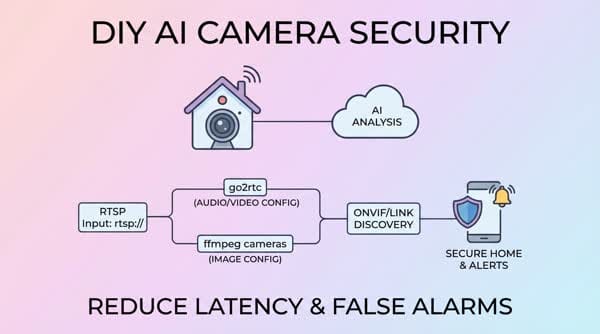
In this configuration, the go2rtc section is used to get the audio, and the video part is configured in the ffmpeg cameras section. You can obtain the RTSP or ONVIF link information from: https://www.ispyconnect.com/vi/camera/imou. For other brands, you can search for similar information for their IP cameras.

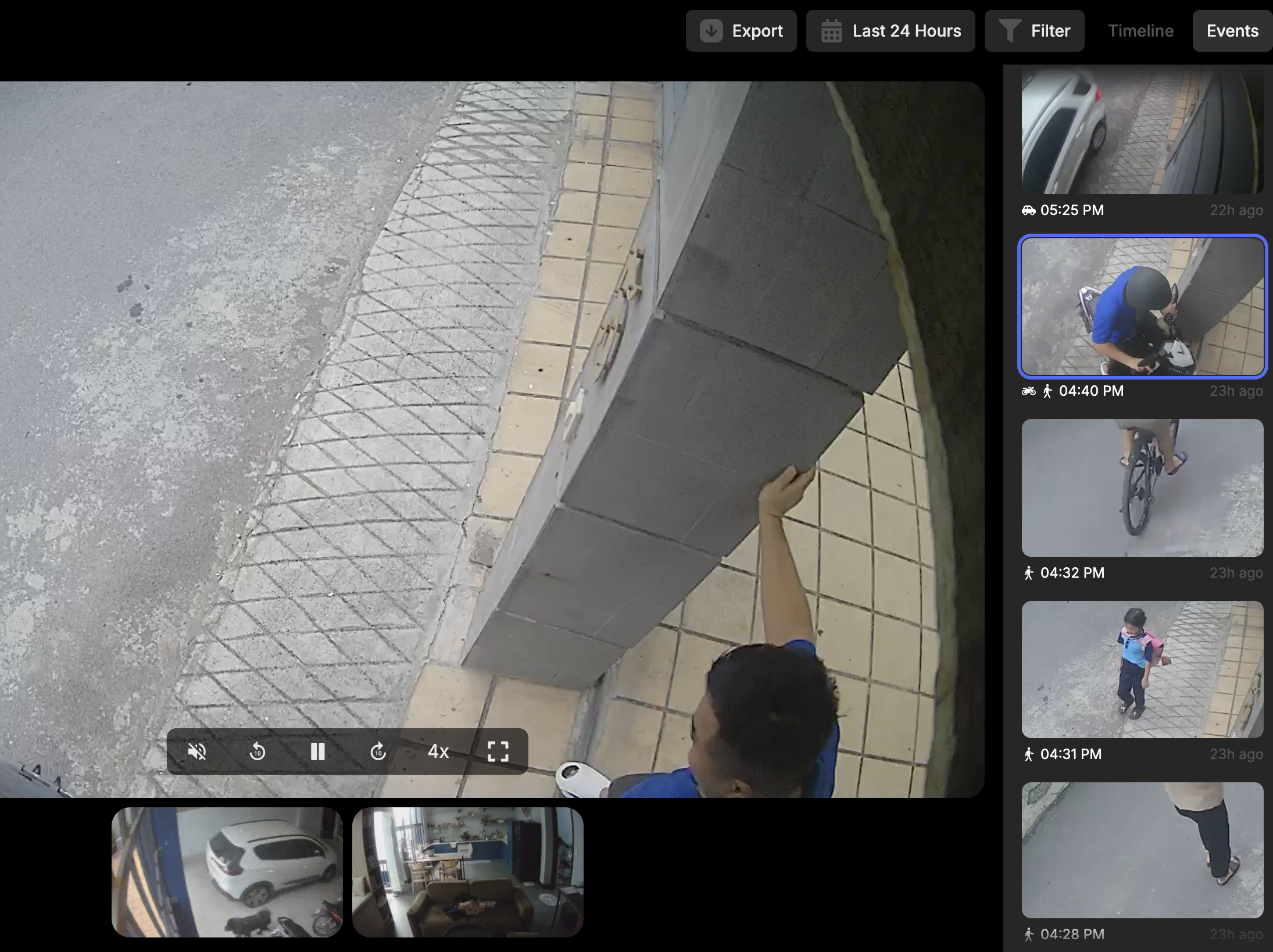
After installation, you’ll have a system operating similar to this. Feel free to play around with the settings.

Most customizations can be made in the settings, but for more advanced tweaks you’ll need to modify the code in the Config. If you need further customization, I can answer in the comments or in a new post that explains configuration for special features.
Connecting Frigate to Home Assistant
Connecting cameras and sensors
You need to install the Frigate integration via HACS or manually using this link: https://github.com/blakeblackshear/frigate-hass-integration.git

This step is quite easy: just enter the IP of the device running Frigate and the port as shown in the screenshot and you’ll be connected.
Connecting the Frigate Card to make full use of features in HASS
Install it via HACS using this repo: https://github.com/dermotduffy/frigate-hass-card
After installation, you can directly view recorded videos in Home Assistant without needing to access the separate Frigate web interface.
Conclusion
In the next part, I’ll show some interesting automations you can build with this DIY AI camera system. For example, sending alerts to Telegram with descriptions generated by Google AI, and setting up alert scenarios and constraints to reduce false alarms indoors.