Why Connect Your VinFast Car to Home Assistant?
Why Connect Your VinFast Car to Home Assistant?
If you own a VinFast electric car (VF e34, VF 3, VF 5, VF 6, VF 7, VF 8, or VF 9) and you are also a fan of home automation, you may have wished you could:
- Monitor the car’s status in real time right on your smart home dashboard
- Receive automatic alerts when tire pressure is low or the battery is nearly empty
- View parameters that are hidden by the official VinFast app (especially for older models)
- Integrate with other automations (for example: turn on the car’s AC before leaving the house)
This article will guide you step by step to turn that dream into reality.
What You Will Achieve
After completing this guide, you will have:
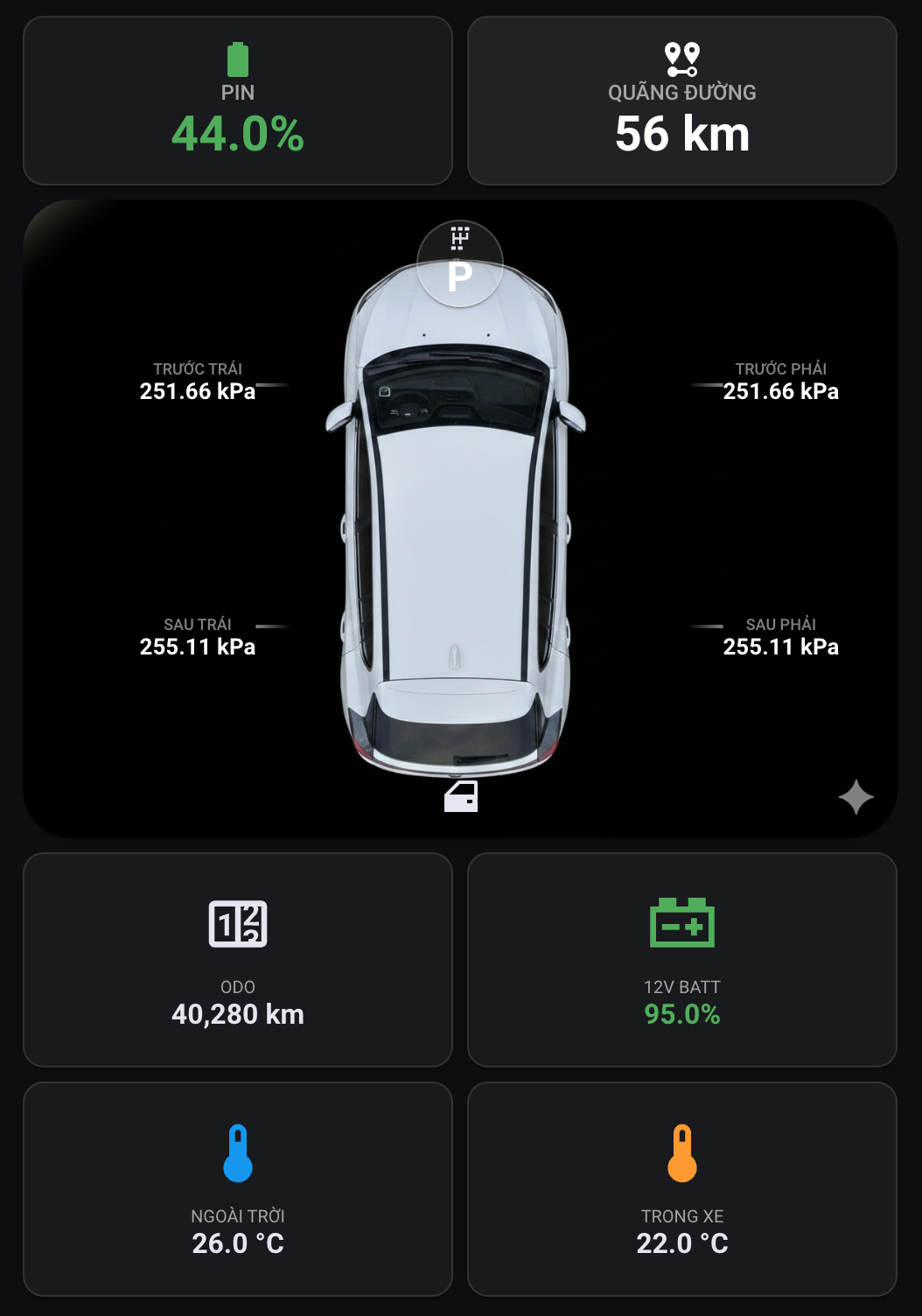
✅ A car monitoring dashboard displaying:
- Battery level and remaining range
- Charging status
- ODO reading (total distance traveled)
- Tire pressure of all 4 wheels
- Cabin temperature
- Door/lock/trunk/hood status
✅ Smart automations:
- Alert when tire pressure < 30 PSI
- Notification when battery is below 20%
- Automatically turn on the car’s AC before going to work
✅ Access to hidden parameters that the VinFast app does not show
Requirements Before You Start
Hardware
- Home Assistant already installed and running (Raspberry Pi, Mini PC, or VM)
- A supported VinFast electric vehicle
- An activated VinFast account that you can log into in the app
Basic Knowledge
- Know how to access Home Assistant via a web browser
- Be able to copy/paste commands into the terminal (this will be explained in detail)
No coding knowledge needed – everything comes with automatic scripts!
Part 1: Install the VinFast Plugin
Step 1.1: Install HACS (Home Assistant Community Store)
HACS is the "app store" for Home Assistant, helping you easily install community plugins.
If You Don’t Have HACS Yet:
- Install the Terminal & SSH add-on:
- Go to Settings → Add-ons → Add-on Store
- Search for "Terminal & SSH", click Install → Start
- (Tip: Enable "Show in sidebar" for easier access)
- Create a GitHub account (if you don’t have one):
- Go to github.com/join and sign up for free
- Install HACS:
- Open the Terminal you just installed in step 1
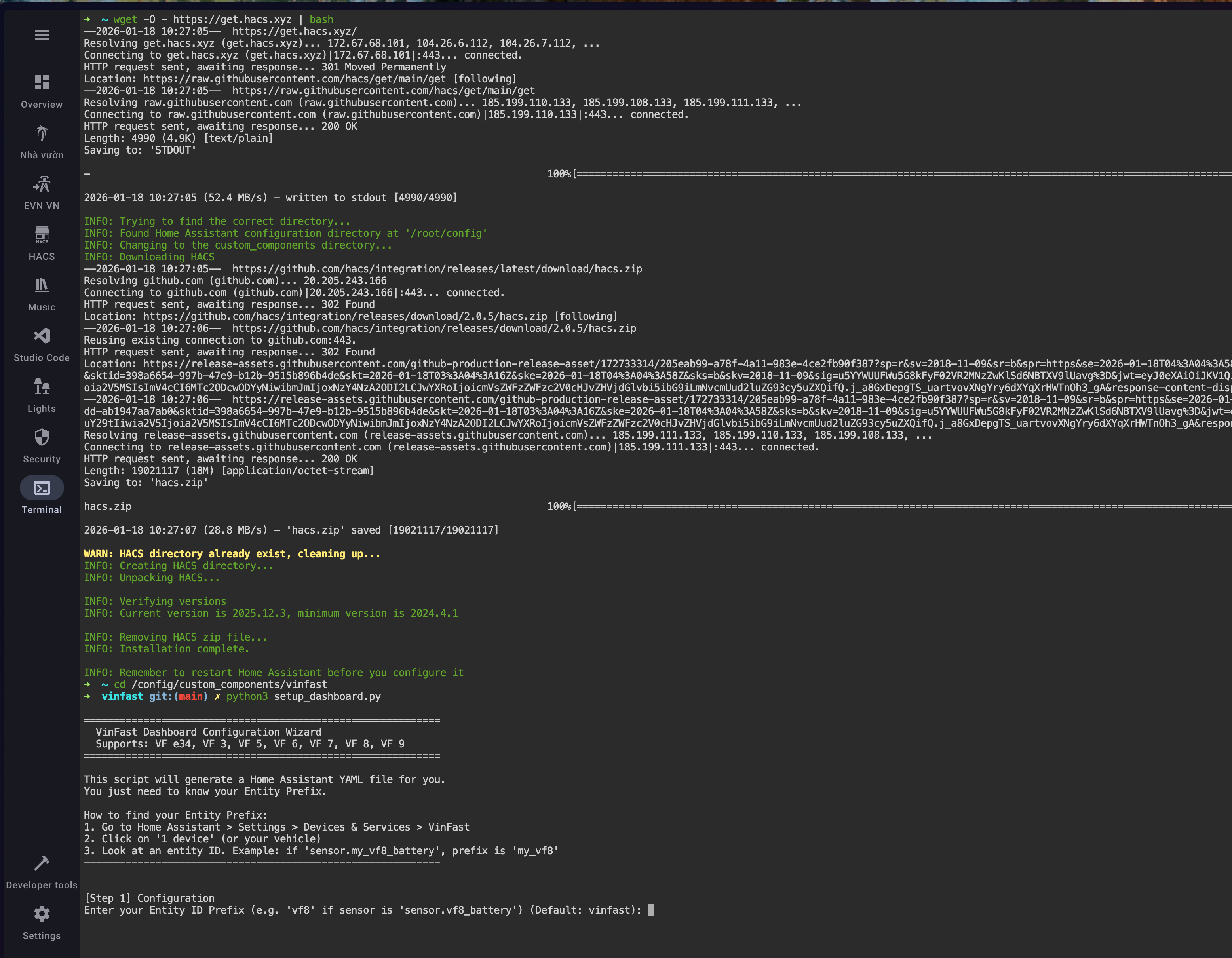
- Copy and paste the following command:
bash wget -O - https://get.hacs.xyz | bash - Wait for it to finish (about 1–2 minutes)
- Restart Home Assistant: Settings → System → Restart
- Activate HACS:
- After restarting, go to Settings → Devices & Services → Add Integration
- Search for "HACS" and click it
- Tick all confirmation boxes → Submit
- Copy the code displayed
- Click the GitHub link → Log in → Authorize for HACS
- Done! (If you don’t see HACS in the sidebar yet, try clearing your browser cache)
Step 1.2: Install the VinFast Plugin via HACS
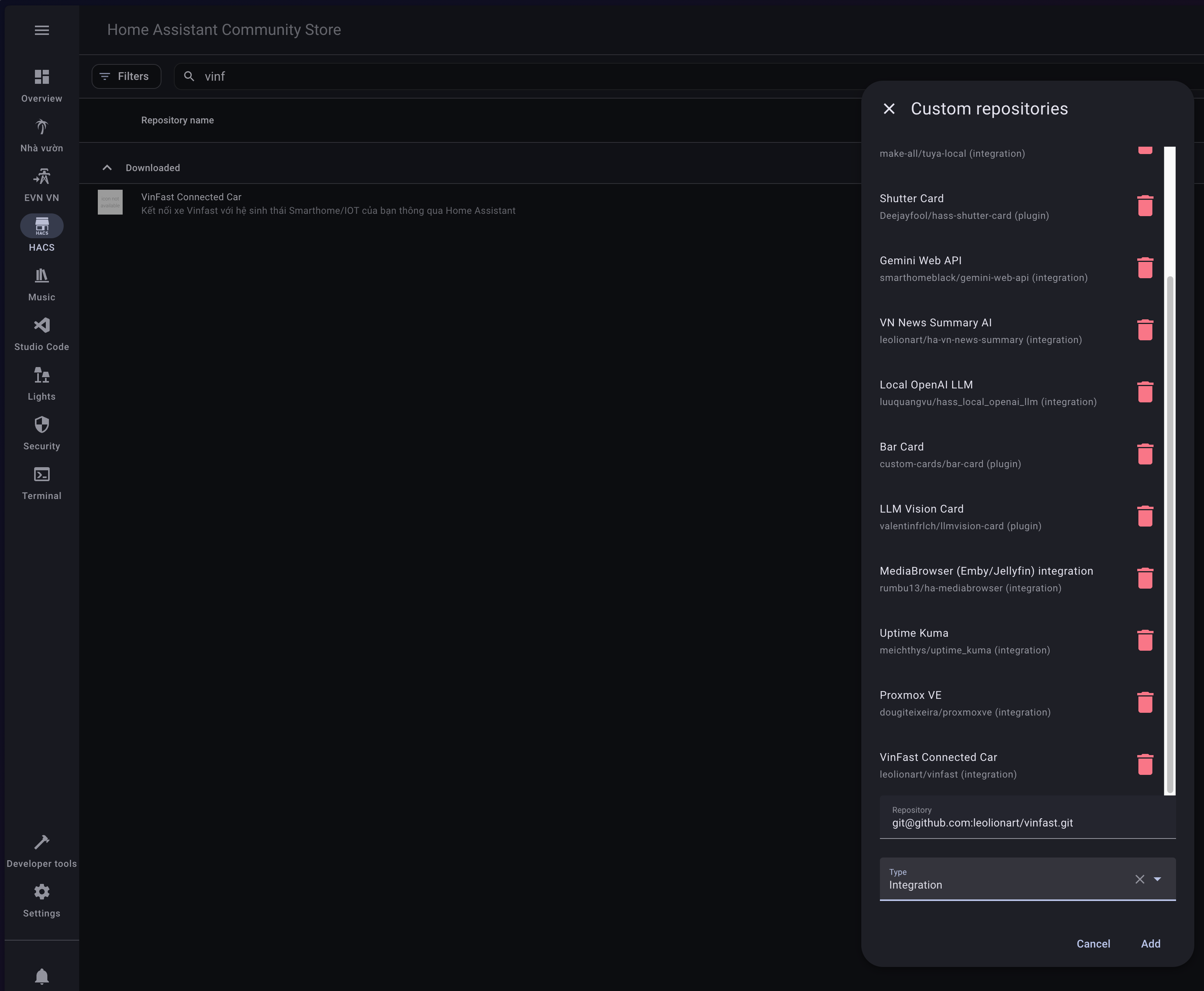
1. Open HACS from the sidebar
2. Select the Integrations tab
3. Click the 3 dots icon (top right corner) → Custom repositories
4. In the popup window:
- Repository: Paste the link https://github.com/leolionart/vinfast
- Category: Choose Integration
- Click Add
5. Now search for "VinFast Connected Car" in the HACS list
6. Click Download → Download again to confirm
7. Restart Home Assistant once more
Step 1.3: Configure the VinFast Integration
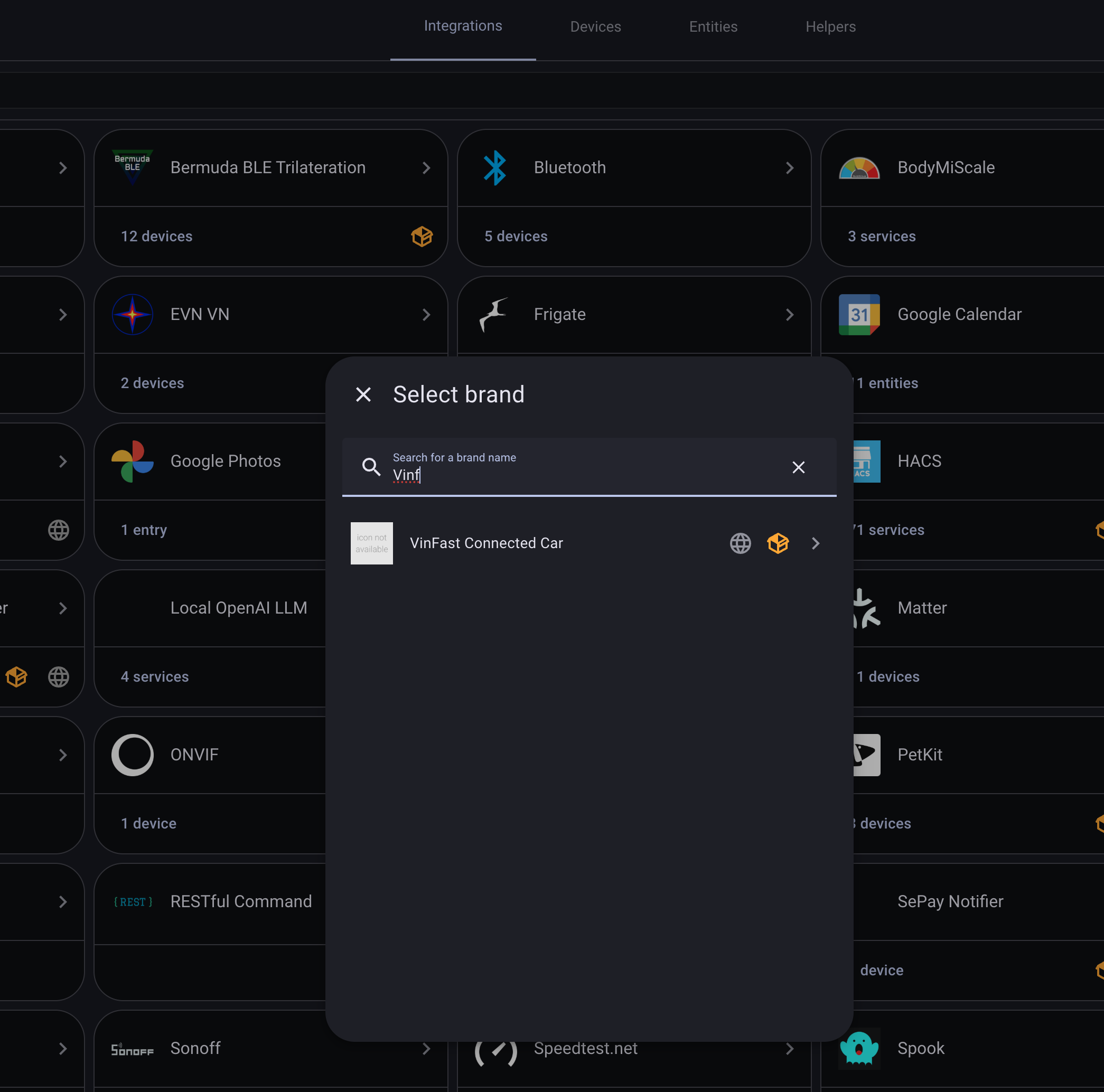
- Go to Settings → Devices & Services
- Click + Add Integration (bottom right corner)
- Search for "VinFast"
- Enter your information:
- Email: Your VinFast account email
- Password: Your password
- Region: Select your region (typically Vietnam)
- Click Submit
Note: Logging in here will log your account out of the VinFast app on your phone, so use a secondary driver’s account to avoid inconvenience.
If the information is correct, your car will appear as a new device!
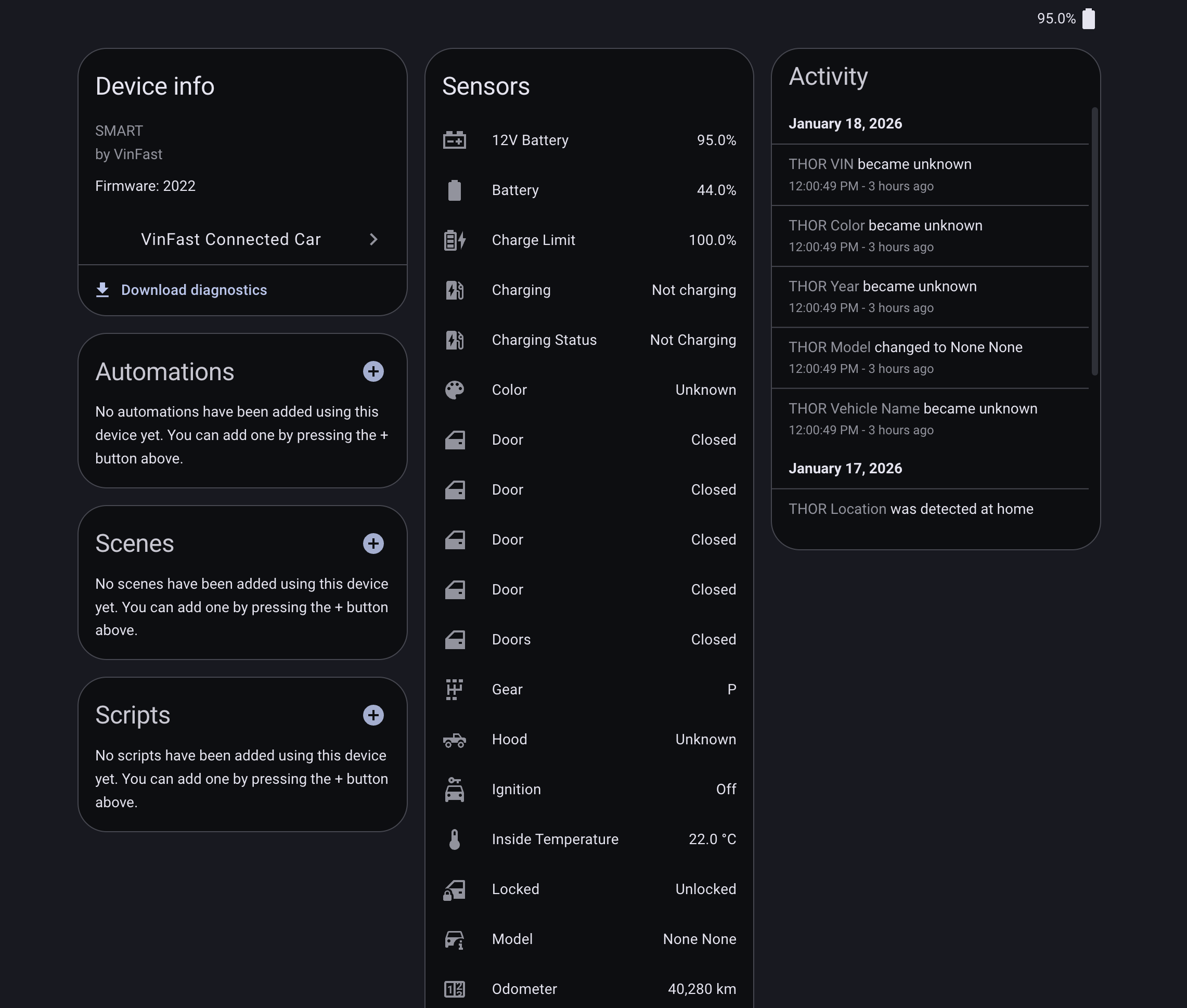
Part 2: Build a Car Monitoring Dashboard
Now for the fun part – creating a visual interface to monitor your car.
Step 2.1: Install Required Custom Cards
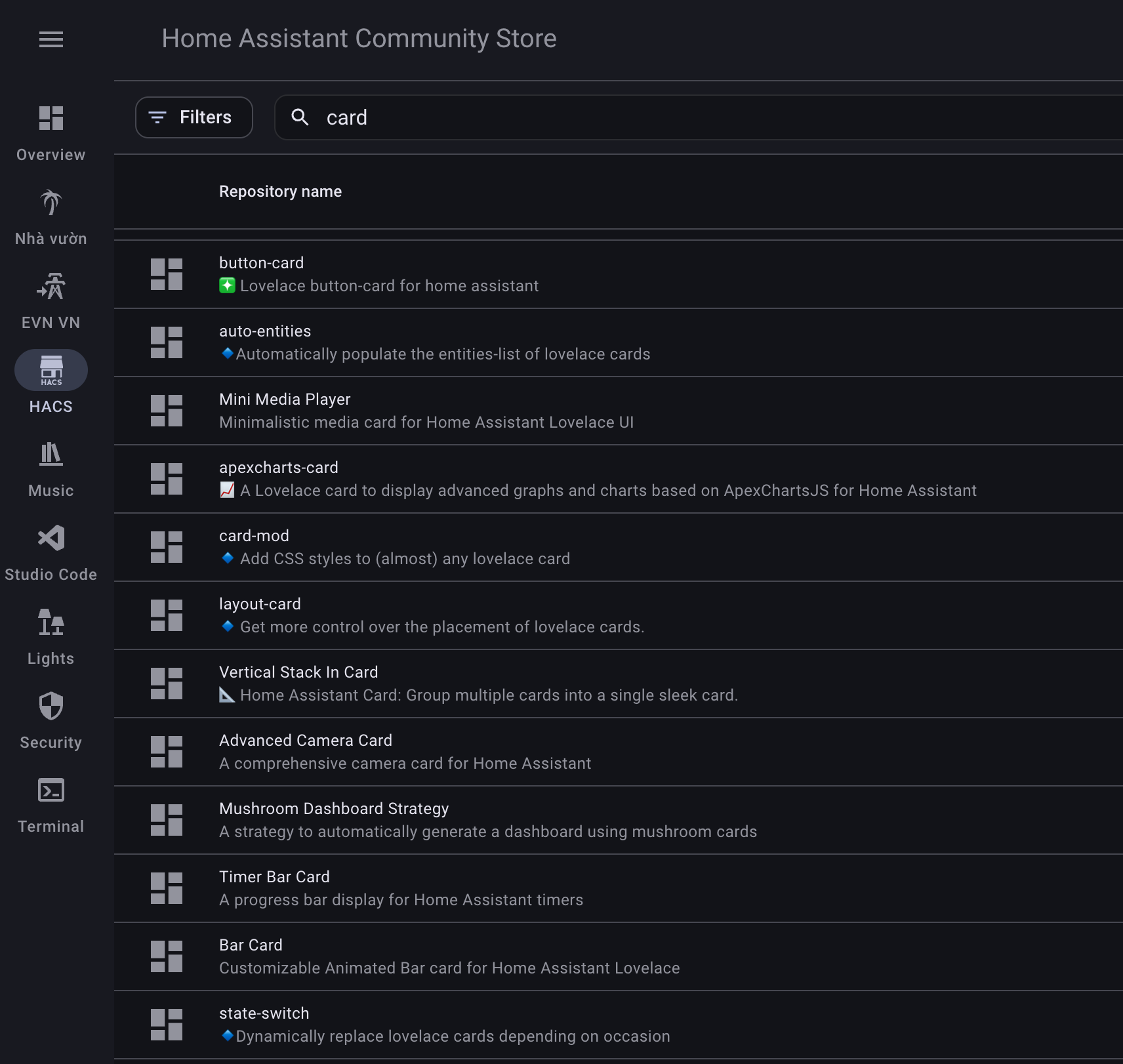
A beautiful dashboard needs these 3 custom cards:
- Open HACS → Frontend tab
- Click + Explore & Download Repositories
- Search for and install the following one by one:
button-cardlayout-cardcard-mod- Restart Home Assistant
Step 2.2: Run the Automatic Dashboard Generator
The VinFast plugin includes an intelligent script to automatically create a dashboard for you.

1. Open Terminal (from the sidebar)
2. Navigate to the plugin folder:bash cd /config/custom_components/vinfast
3. Run the script:bash python3 setup_dashboard.py
4. Answer the questions:
- Entity Prefix: Enter your car’s entity prefix (for example: if you see sensor.vf8_battery, type vf8)
- Choice:
- Type 1 for Full Wall Panel (full-screen dashboard with a nice glassmorphism style)
- Type 2 for Simple Card (a compact card to add to an existing dashboard)
- The script will create a YAML file (for example:
my_vinfast_dashboard.yaml)
Step 2.3: Add It to Home Assistant
With Simple Card:
- Install the File Editor add-on (from the Add-on Store) to easily open the file
- Open the generated YAML file and copy all of its contents
- Go to Dashboard → Edit Dashboard → Add Card
- Scroll down and select Manual
- Paste the content → Save
With Full Wall Panel:
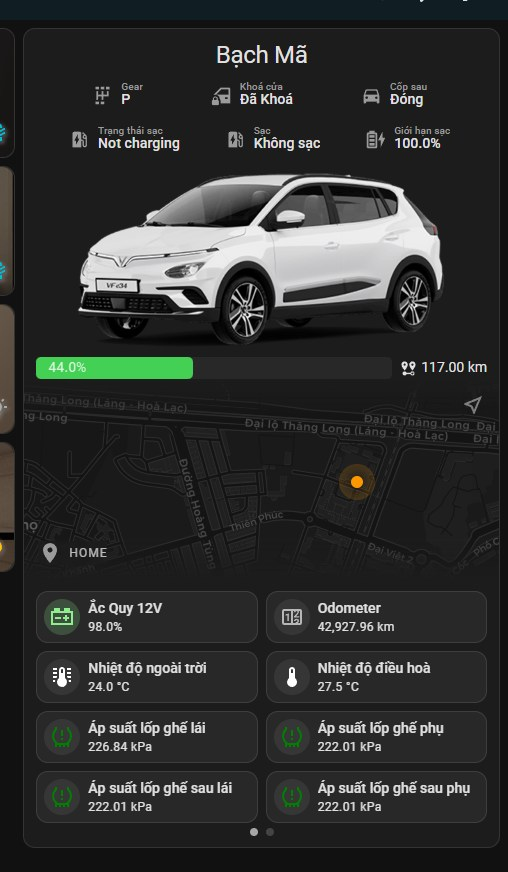
- Go to Dashboard → Edit Dashboard → 3 dots icon → Raw Configuration Editor
- Paste the YAML file content there (or create a new View with the "Panel" type)
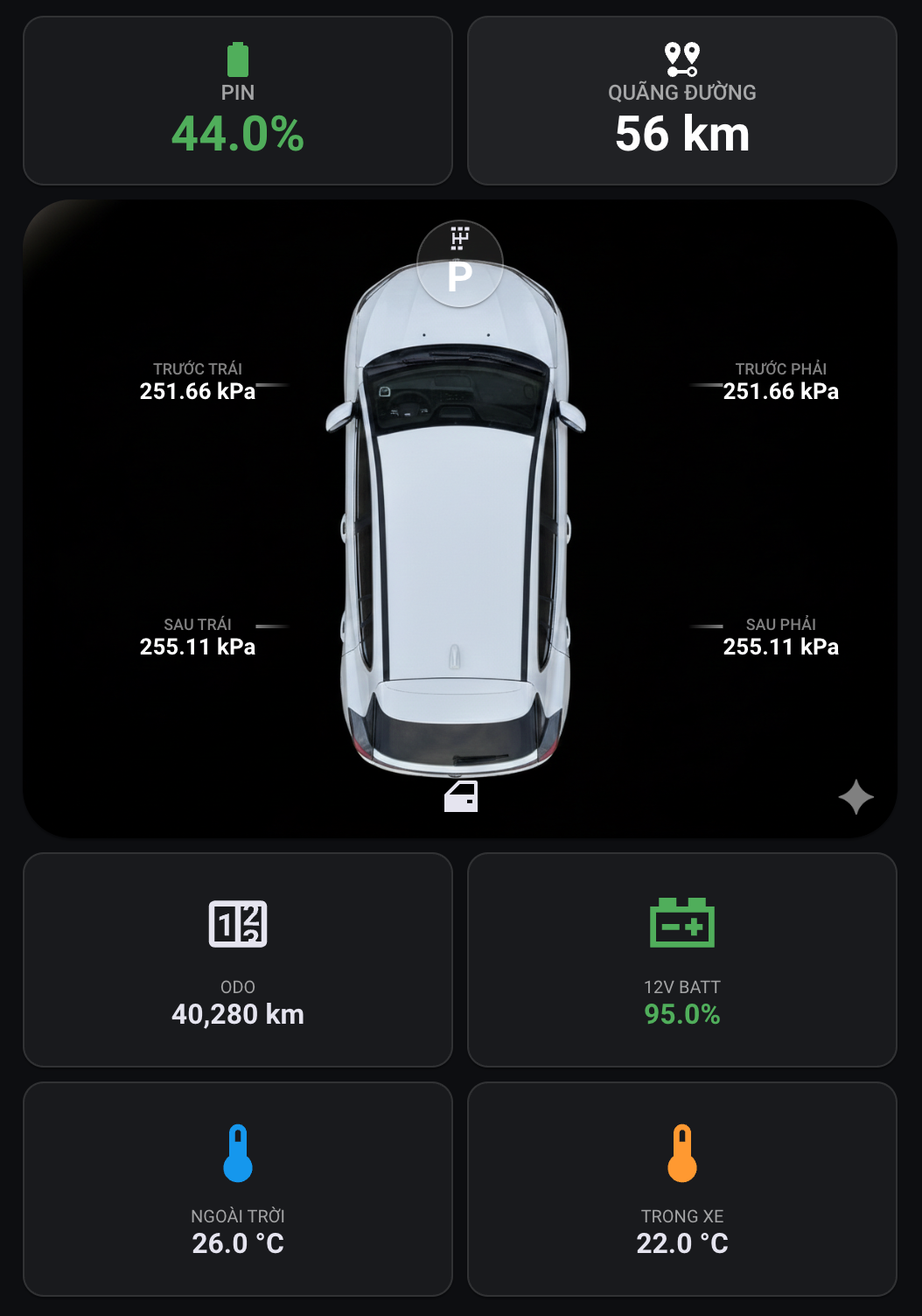
Result: You will see a dashboard that fully displays:
- Battery level and remaining percentage
- Estimated range (km)
- Charging status (charging/not charging)
- Total ODO
- Pressure of all 4 tires
- Cabin temperature
- Door/lock/trunk/hood icons (open/closed)
Part 3: Set Up Smart Automations
Now we will create automations so your car can "automatically report" when something is wrong.
Automation 1: Low Tire Pressure Alert
Low tire pressure is a leading cause of danger and energy waste. Let Home Assistant monitor it for you.
- Go to Settings → Automations & Scenes → Create Automation
- Select Start with an empty automation
- Configure as follows:
Trigger:
- Click Add Trigger → Numeric state
- Entity: sensor.vf8_tire_pressure_front_left (replace vf8 with your prefix)
- Below: 30 (PSI)
- For: 5 minutes (to avoid false alerts due to temporary fluctuation)
Action:
- Click Add Action → Notify
- Choose a notify service (for example: notify.mobile_app_iphone)
- Message:⚠️ Warning: The front left tire of {{ state_attr('sensor.vf8_device_name', 'friendly_name') }} has low pressure ({{ states('sensor.vf8_tire_pressure_front_left') }} PSI). Please check!
- Repeat for the other 3 tires (front_right, rear_left, rear_right)
Automation 2: Charging Reminder When You Arrive Home
Automatically remind you to plug in the charger if the battery is below 30% when you get home.
Trigger:
- Device: Your phone enters the Home zone
Condition:
- Entity: sensor.vf8_battery
- State: below 30
Action:
- Notify:🔋 Your car battery is only {{ states('sensor.vf8_battery') }}%. Don’t forget to plug in the charger!
Automation 3: Turn On AC Before Going to Work
(Requires the car to be paired with Home Assistant – see Troubleshooting section)
Trigger:
- Time: 7:00 AM (Monday – Friday)
Condition:
- Outside temperature > 28°C (optional)
Action:
- Service: switch.turn_on
- Target: switch.vf8_air_conditioning
Have questions or run into issues? Leave a comment below and I’ll help you out! 💬
Find this article useful? Share it with other VinFast owners! 🚗⚡