
Issues with Wi-Fi When Using a Smarthome
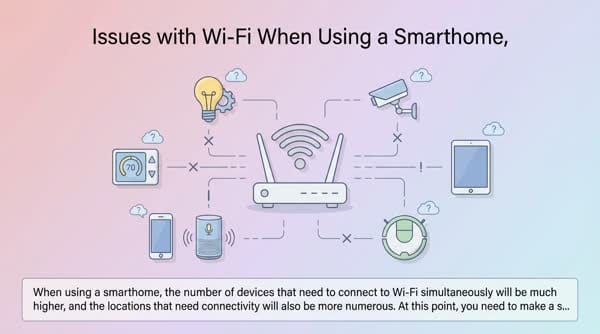
When using a smarthome, the number of devices that need to connect to Wi-Fi simultaneously will be much higher, and the locations that need connectivity will also be more numerous.
When using a smarthome, the number of devices that need to connect to Wi-Fi simultaneously will be much higher, and the locations that need connectivity will also be more numerous. At this point, you need to make a serious investment in networking equipment to keep everything running stably.
Mesh system to provide Wi-Fi coverage throughout the house
The current network configuration I’m using
The number of devices connected simultaneously in my setup is over 50 devices.
Since I need to handle a large number of concurrent devices and balance the load, I use a dedicated device just for PPPoE dialing. ISPs usually provide an all-in-one device (PPPoe dialing, DHCP server, Wi-Fi access point). You can also first upgrade the Wi-Fi AP to cover the whole house using a mesh protocol. Only if that’s still not stable do you need to move to the solution I’m currently using.
- Wi-Fi AP: Ruijie EW1200G-PRO (6 units)
- Optical to LAN converter: FPT Converter, Viettel Router (ask your ISP to provide and configure them)
- Router for PPPoE dialing & DHCP server: Mikrotik 750Gr3
- LAN port expansion: basic 1 Gbps switch
I use 2 fiber lines to ensure a stable connection for work. I’d rather install 2 ISPs than pay a higher price for a single ISP. I use the Mikrotik for load balancing to distribute traffic evenly across both lines.
When you need to upgrade your networking equipment
- All devices in the house are slow.
- Devices occasionally get disconnected from Wi-Fi even when they’re idle.
- Sometimes the network is fast, sometimes it’s slow.
- The router automatically restarts multiple times a day.
Common networking issues
- Mikrotik’s LAN bridging is very poor; avoid plugging into many ports as it can easily cause packet loops. Buy an additional switch to expand connections via more LAN cables instead of trying to make use of the existing LAN ports.
- To hard reset a Mikrotik, you need to hold both the Mode and Reset buttons to be able to access it according to the instructions on the official website.
- If you want to open ports for a dynamic IP, you have to configure an Address List in the firewall. Remember to call the ISP’s hotline to request port opening; by default the ISP will block them.
- On a PC, if the firewall is disabled, you won’t be able to connect to check the PC’s status and Wake on LAN will not work.