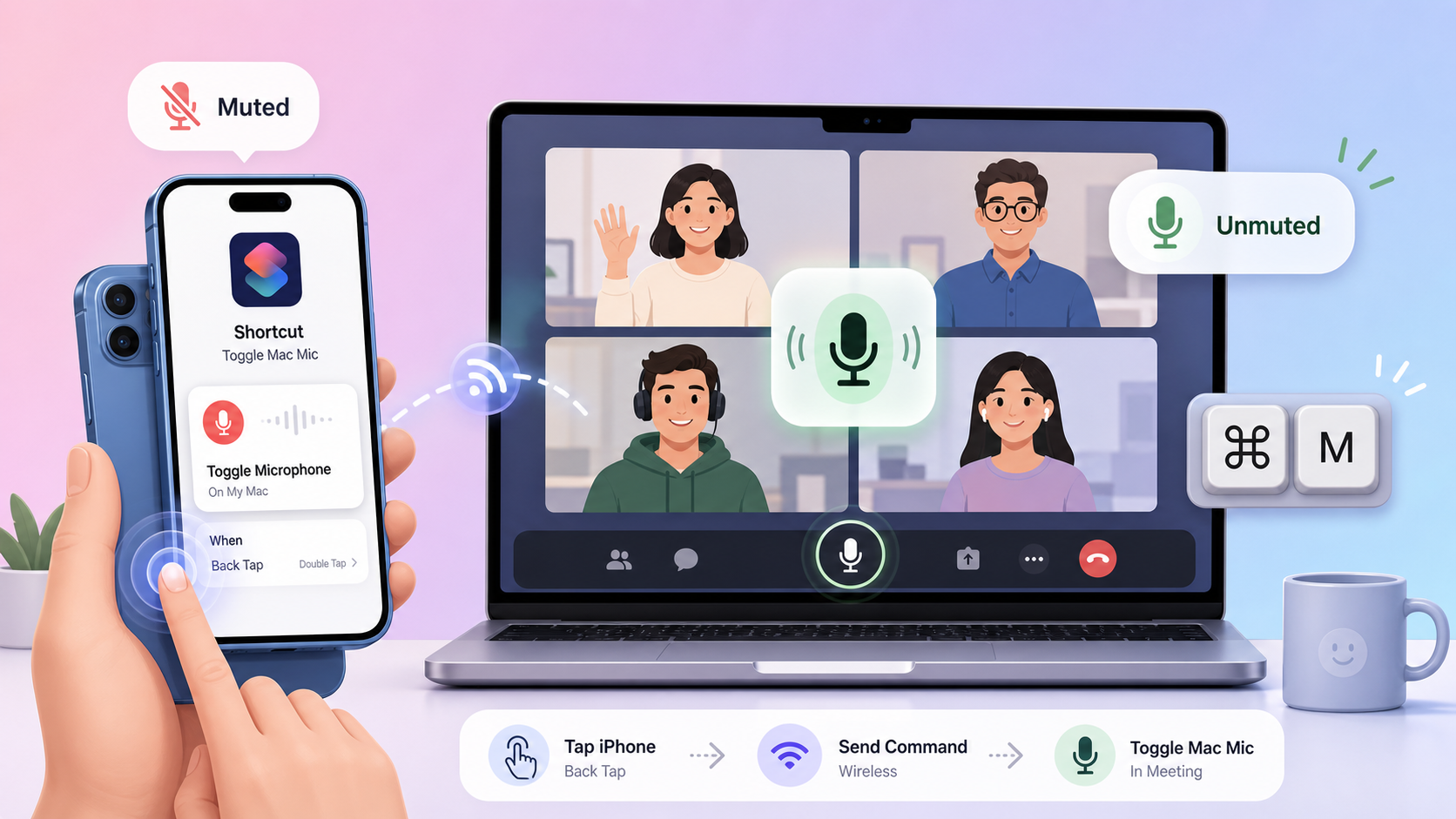
Audio Remote: Control Your Mac's Mic and Volume Remotely
Having an online meeting, forgetting to turn on the mic, and talking endlessly - everyone has experienced this feeling, right? 😅
Part 1: Why do you need this app?
😩 The pains of online meetings
When working remotely, online meetings are a daily occurrence. But there are a few "classic" situations that frustrate everyone:
1. Forgetting to turn on the mic
You are sharing your screen to demo for the team, passionately explaining for 5 minutes. Then you see a colleague's chat: "Bro, I can't hear anything." 🤦♂️
2. Forgetting to turn off the mic
During a meeting, a dog barks, a baby cries, or the clacking sound of a keyboard flies into the meeting. Everyone looks at each other, not knowing where the sound is coming from.
3. Switching tabs to turn the mic on/off is very annoying
While sharing Chrome, to mute the mic you have to:
- Alt+Tab to Google Meet/Zoom
- Click the mic button
- Alt+Tab back to the shared screen
It breaks your workflow, causes a loss of focus, and sometimes you even share the wrong screen!
4. Wanting to attend a meeting while walking/jogging
AirPods have gesture control on iOS (tap the earbuds to turn the mic on/off). But on Mac? Nothing! Apple doesn't allow it. So unfair!
💡 Solution: Audio Remote
I built a super lightweight macOS app to completely solve these problems:
- 📱 Turn the mic on/off from your phone - no app installation needed, just be on the same WiFi
- 🔊 Volume synchronization - tap the back of your phone to change the Mac volume
- 🖥️ HUD in the middle of the screen - instantly know if you are muted or unmuted
- ⌨️ System shortcut - ⌘M to toggle the mic, works anywhere
- ⚡ Super fast - only ~1ms latency
)
Goal: Everyone gets a "0-dollar Stream Deck" - remote control your Mac without spending a dime! 😉
Remote volume control feature
I also have the need to adjust the application volume from my phone, so I developed a feature where tapping the back of the phone synchronizes the volume with the computer.
)
Download the volume control shortcut here:
👉 Download Audio Remote
Part 2: Detailed installation guide (step-by-step)
Don't worry if you are not tech-savvy - I will guide you step by step, from A to Z!
Step 1: Download and install the app on Mac
1.1. Download app
Visit the following link and download the AudioRemote.dmg file:
Click on the latest .dmg file (for example: AudioRemote-v2.4.0.dmg)
1.2. Installation
- Open the downloaded
.dmgfile - Drag the Audio Remote icon into the Applications folder
- Go to Applications and double-click to open the app
1.3. What to do if macOS blocks the app
If you see the message "App can't be opened because it is from an unidentified developer":
- Open Terminal (how to open: press
Cmd + Space, typeTerminal, press Enter) - Copy and paste the following command into Terminal:
xattr -cr /Applications/AudioRemote.app
- Press Enter
- Close Terminal and reopen the app
1.4. Grant Microphone permission
When the app requests Microphone access → Click Allow
If you accidentally clicked Deny, go to System Settings → Privacy & Security → Microphone → Turn on Audio Remote
1.5. Install the browser extension
After trying many methods to mute the system-wide audio, I was still unsuccessful. Because most of these applications will automatically readjust the input volume, it cannot be muted completely. Instead, I pivoted to developing a mute function via a browser plugin.
Install this plugin and it will automatically connect to the desktop app to perfectly control the microphone on/off operation. It also defaults to turning off the mic and camera when accessing Google Meet.
)
Step 2: Turn on the HTTP Server and get the IP address
2.1. Turn on the HTTP Server
- Look up at the menu bar (top right corner of the screen) → you'll see a 🎤 icon
- Click on that icon → Select Settings...
- Find the HTTP Server section → Turn ON
2.2. Get the Mac's IP address
Still in the Settings window, look at the Network Info section → Note down the IP address (for example: 192.168.1.100)
💡 Tip: This IP will be used by the phone to send commands to the Mac. Write it down!
Step 3: Install iOS Shortcuts on iPhone
This is the most important step! You will download 2 existing shortcuts and just need to change the IP address.
3.1. Download the "Toggle Mic" Shortcut
- On your iPhone, open the following link using Safari:
👉 Download Toggle Mic Shortcut
- Press Get Shortcut (or Add Shortcut)
- The shortcut will be added to the Shortcuts app
3.2. Download the "Sync Volume" Shortcut
- On your iPhone, open the following link:
👉 Download Sync Volume Shortcut
- Press Get Shortcut
Step 4: Change the IP address in the Shortcut
After downloading the shortcut, you need to replace the default IP address with your Mac's IP.
4.1. Edit the "Toggle Mic" Shortcut
- Open the Shortcuts app on your iPhone
- Find the shortcut you just downloaded (the name might be "Toggle Mac Mic")
- Tap the 3 dots (⋯) in the corner of the shortcut to edit it
- Find the line with a URL like:
http://YOUR_MAC_IP:8765/toggle-mic - Replace
YOUR_MAC_IPwith your actual Mac IP (for example:192.168.1.100) - Result:
[http://192.168.1.100:8765/toggle-mic](http://192.168.1.100:8765/toggle-mic) - Tap Done
4.2. Edit the "Sync Volume" Shortcut
Do the same with the Sync Volume shortcut - replace YOUR_MAC_IP with your Mac's IP.
Step 5: Add the Shortcut to the Home Screen or Back Tap
Method 1: Add to Home Screen
- Open the shortcut → Tap the 3 dots (⋯)
- Tap the (i) icon in the top right corner
- Select Add to Home Screen
- Set a name and choose an icon
- Tap Add
Now you can just tap once on the Home Screen to turn the mic on/off!
Method 2: Assign to Back Tap (tapping the back of the phone)
This is the best method - tap the back of your phone 2 times to turn the mic on/off!
- Open Settings on your iPhone
- Go to Accessibility → Touch → Back Tap
- Select Double Tap
- Scroll down to the Shortcuts section → Select Toggle Mac Mic
Now when you tap twice on the back of your iPhone = turn mic on/off on your Mac! 🎉
Method 3: Use Siri
You can say: "Hey Siri, Toggle Mac Mic" to turn the mic on/off!
Step 6: Test it out!
- Make sure your iPhone and Mac are on the same WiFi network
- Open a Google Meet/Zoom meeting
- Tap the back of your iPhone 2 times (or tap the shortcut on the Home Screen)
- Look at your Mac screen → you will see the HUD displaying the mic status
- The mic will be turned on/off!
🆘 Troubleshooting
Shortcut not working?
- Check if on the same WiFi: Your iPhone and Mac must be on the same WiFi network
- Check if the IP is correct: Go to the Settings app on your Mac → re-check the IP
- Check if the HTTP Server is turned on: Settings → HTTP Server must be ON
- Test using Safari: On your iPhone, open Safari and type
http://[MAC-IP-ADDRESS]:8765→ If you see the web interface, it's OK
What if the IP changes?
If your home router provides dynamic IPs, your IP might change every time you restart the router. You need to:
1. Go to the Settings app on your Mac → check for the new IP
2. Edit the shortcut with the new IP
Tip: Configure a Static IP for your Mac in your router so the IP doesn't change.
📥 Download
I find it so convenient for myself, so I'm sharing it for everyone to use for FREE!
P/S: The in-app auto-update is still a work in progress, the free version keeps failing and I haven't been able to fix it yet. I'll come back to fix it later when I learn how 😅
Please download, try it out, and leave feedback!
Made with ❤️ for macOS users