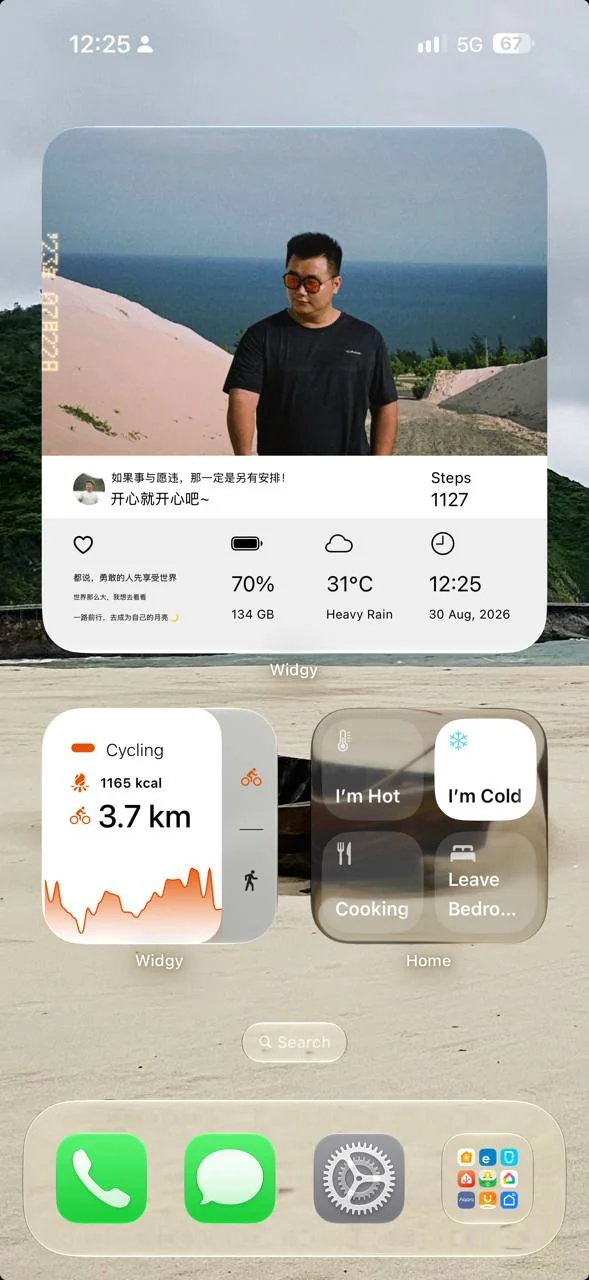
Change How You Use Your iPhone: Replace App Icons with Widgy Widgets
Widgy helps you bring personal information, weather, health data, and recurring actions to the Home Screen. Start with ready-made designs, then adapt the data and style to your habits.
An iPhone Home Screen is usually a grid of app icons. But if you mostly want to check the time, weather, calendar, health, or a few personal details, finding and opening each app is an unnecessary loop.
With Widgy, the Home Screen becomes a personal information layer. You can choose a ready-made design, add it to the Home Screen, and then change its data, colors, and a few details until the widget fits your habits.
What Makes Widgy Useful?
Widgy is not just a collection of widget wallpapers. It is a layer-based editor that lets you take an existing design and change its data source and presentation. Depending on the design, a widget can show weather, calendar data, battery, system information, charts, or health data after the appropriate Apple Health permission is granted.
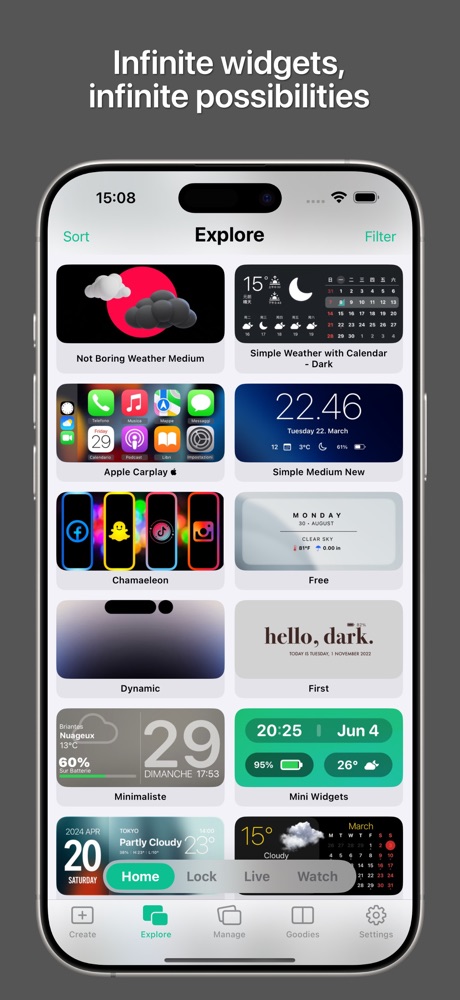
The easiest starting point is Widgy's Explore area, where you can choose a design close to what you need:
- A large widget for the information you need most.
- A widget for personal metrics such as steps, activity, or battery.
- A small widget with shortcuts to Home, Shortcuts, or recurring actions.
- A different layout for work, home, driving, or weekends.
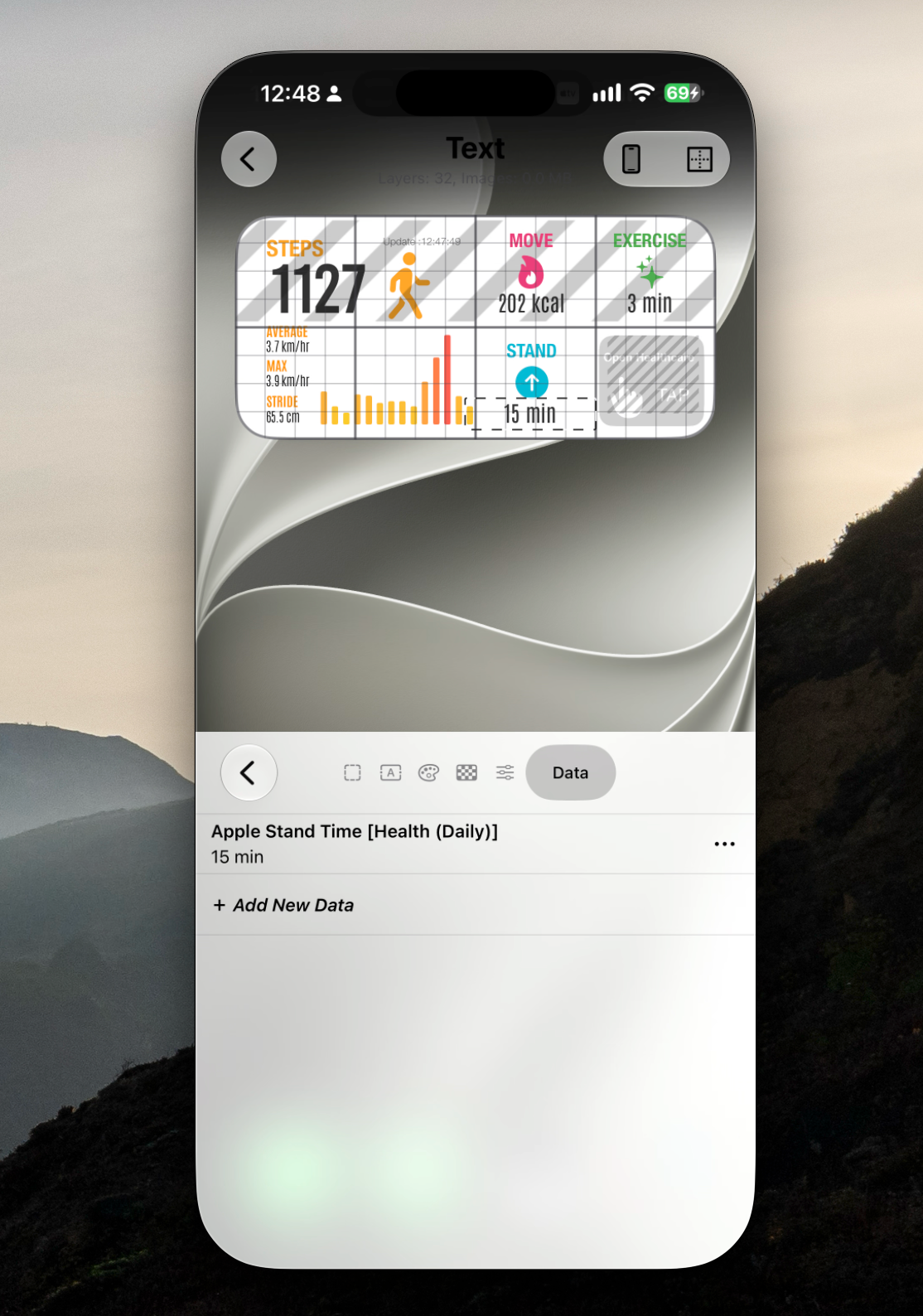
You can work directly on each widget element to change its color, position, data source, and other details. Once you get used to it, there is plenty of room to make the design your own.
Start with a Ready-Made Design
You do not need to build a widget from a blank screen. Choose a design with a layout you already like, then open it in the editor and replace the important parts:
- Today's calendar and weather.
- A recent health or activity summary.
- A shortcut to your camera, task list, or smart-home dashboard.
- Images, colors, fonts, and labels that do not fit your habits.
The rest of your apps can stay in the App Library. This keeps the first screen quieter and reduces the habit of opening apps without a clear purpose.
Start with data first and aesthetics second. For each layer, check whether it makes information easier to read or an action faster to reach, remains readable outdoors and in dark mode, and still holds together when data is missing.
Leave enough room for values longer than expected. A stable widget is more useful than one that fits one extra metric but breaks when the data changes.
Add the Design to Your Home Screen
After choosing and customizing a design, assign it to a slot in Widgy. The first widget slot is available in the free experience; using additional slots or more widgets requires an upgrade. The one-time price I saw, a little over VND 200,000, felt reasonable for long-term use, although App Store pricing and conditions can change.
On iPhone:
- Press and hold an empty area on the Home Screen.
- Tap Edit, then Add Widget.
- Find Widgy, choose the matching size, and add it.
- Press and hold the widget, choose Edit Widget, and select the slot you assigned in Widgy.
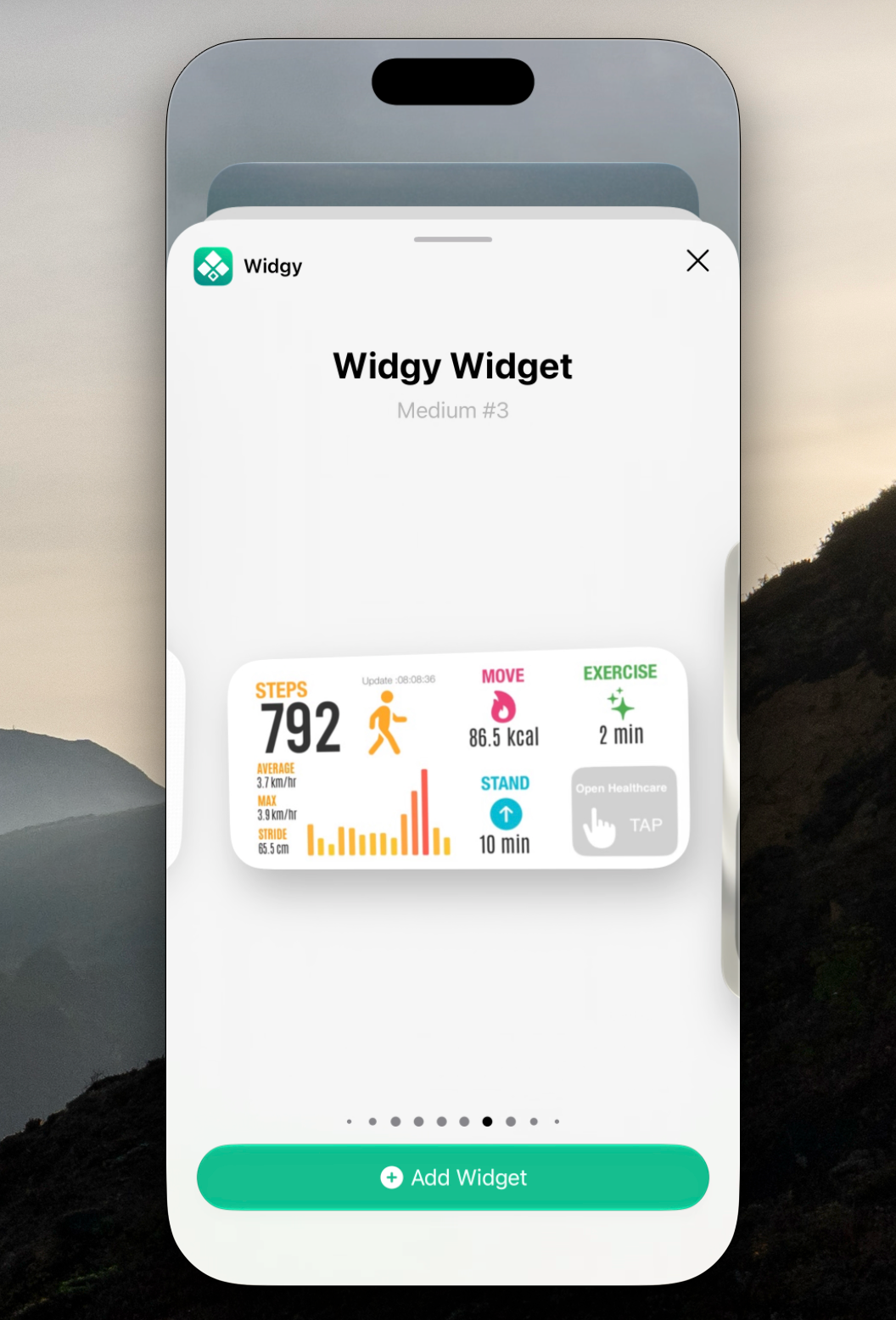
Widgy creates widget slots for you to choose from. After adding the widget, it may initially appear empty; tap it once to select which saved design should occupy that position.
You can use separate Home Screen pages for different contexts. Keep daily information and actions on the first page, and move home dashboards, media controls, or less frequent shortcuts to secondary pages.
Apple's official iPhone widget guide covers the current add-and-edit flow. For removing icons without uninstalling apps, see Apple's guide to organizing the Home Screen and App Library.
Conclusion
Widgy makes the Home Screen more personal and intentional. Instead of unlocking the phone and searching for an icon, you can see the information you need and tap directly into the action you want.
I like Widgy because the learning curve can stay gentle: choose a good design, replace its data, and use it. Once you understand how the layers work, you can go deeper when needed. A few well-placed widgets are enough to turn the Home Screen into the first interface for your calendar, health data, shortcuts, and the systems you build at home.