Phone Having Trouble Connecting Bluetooth On VF e34
How to fix the issue where the phone shows a pairing confirmation code, but the VF e34 still keeps waiting and does not connect. The usual cause is a conflict between Android Auto and the VinFast screen's Bluetooth connection.
When connecting a phone to the VF e34, a common issue is that the phone already shows the confirmation code and you have pressed confirm, but the car screen keeps waiting and never completes the connection. In most cases, this does not mean the phone's Bluetooth is broken. The car screen is usually stuck with another connection, especially Android Auto.
In short: before pairing Bluetooth, make the car screen focus on only the one phone you want to connect.
How To Fix It
Follow the steps in order, and avoid tapping connect repeatedly:
- Disconnect every device currently connected to the car.
- If Android Auto is connected, disconnect Android Auto first.
- On the car screen, go back to the phone/Bluetooth section.
- Tap connect on the exact phone name you want to pair with the car.
- When the confirmation code appears on both the car screen and the phone, check that the codes match, then confirm on both sides.
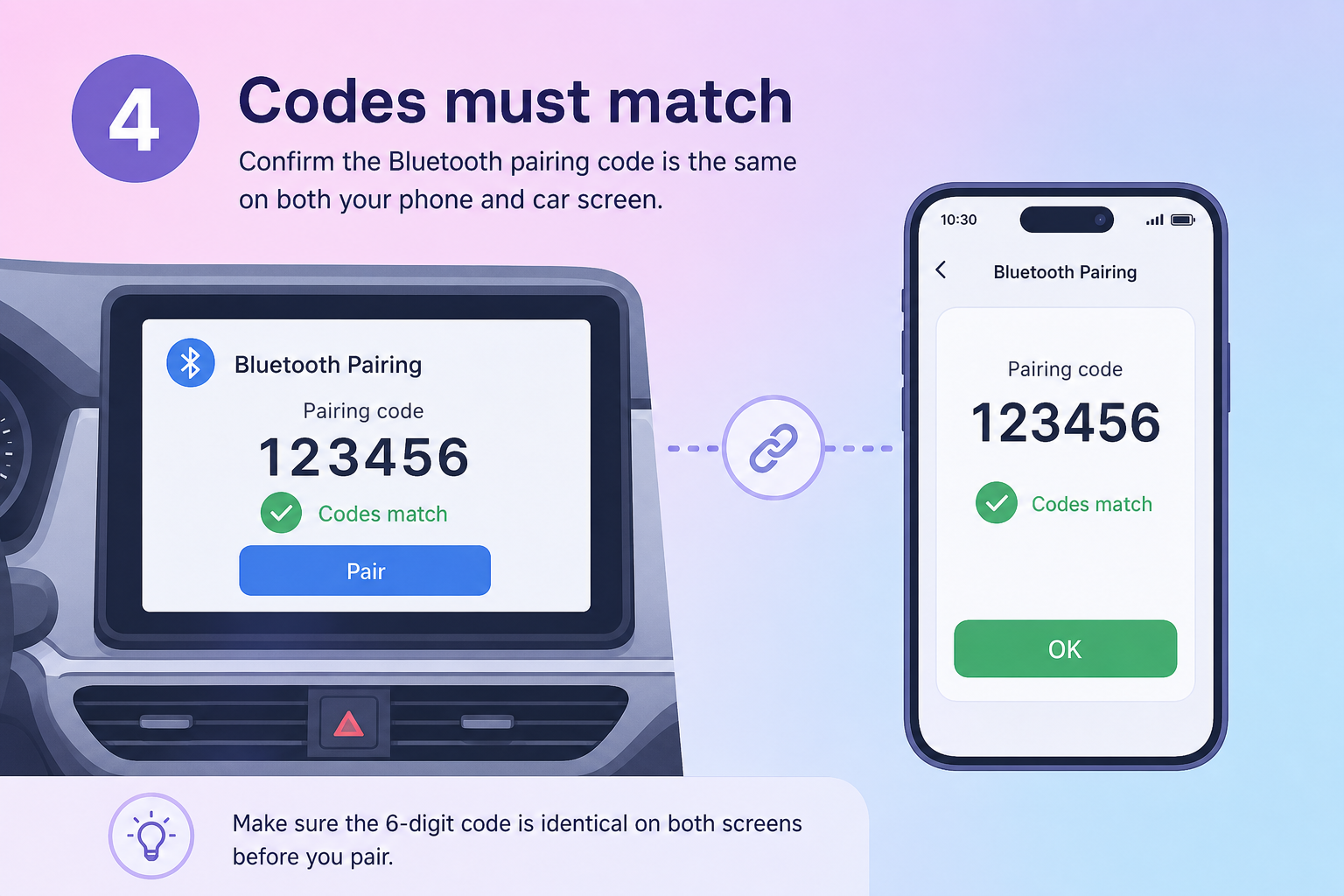
The most important parts are steps 1 and 2. If the car screen is still holding an Android Auto session or another phone connection, the Bluetooth layer in the VinFast screen OS can easily get stuck at the confirmation-code step.
If It Still Gets Stuck
If you have already pressed confirm but the car still does not connect:
- Turn off Android Auto on the phone, or unplug the Android Auto cable if one is connected.
- Turn Bluetooth off on the phone for about 10 seconds, then turn it back on.
- On the car screen, exit the pairing screen and open it again.
- Try connecting again from the car screen, selecting only the one phone you want to pair.
Do not let Android Auto auto-connect while manually pairing Bluetooth at the same time. Pair Bluetooth first, then turn Android Auto back on if you need it.
In short, treat this issue as a conflict between Android Auto and the VinFast screen's Bluetooth connection: disconnect Android Auto and other devices first, pair only one phone, confirm the code on both the car and the phone, then use Android Auto again afterward.
The illustration in this article was recreated to describe the action. It is not an official VinFast UI screenshot.