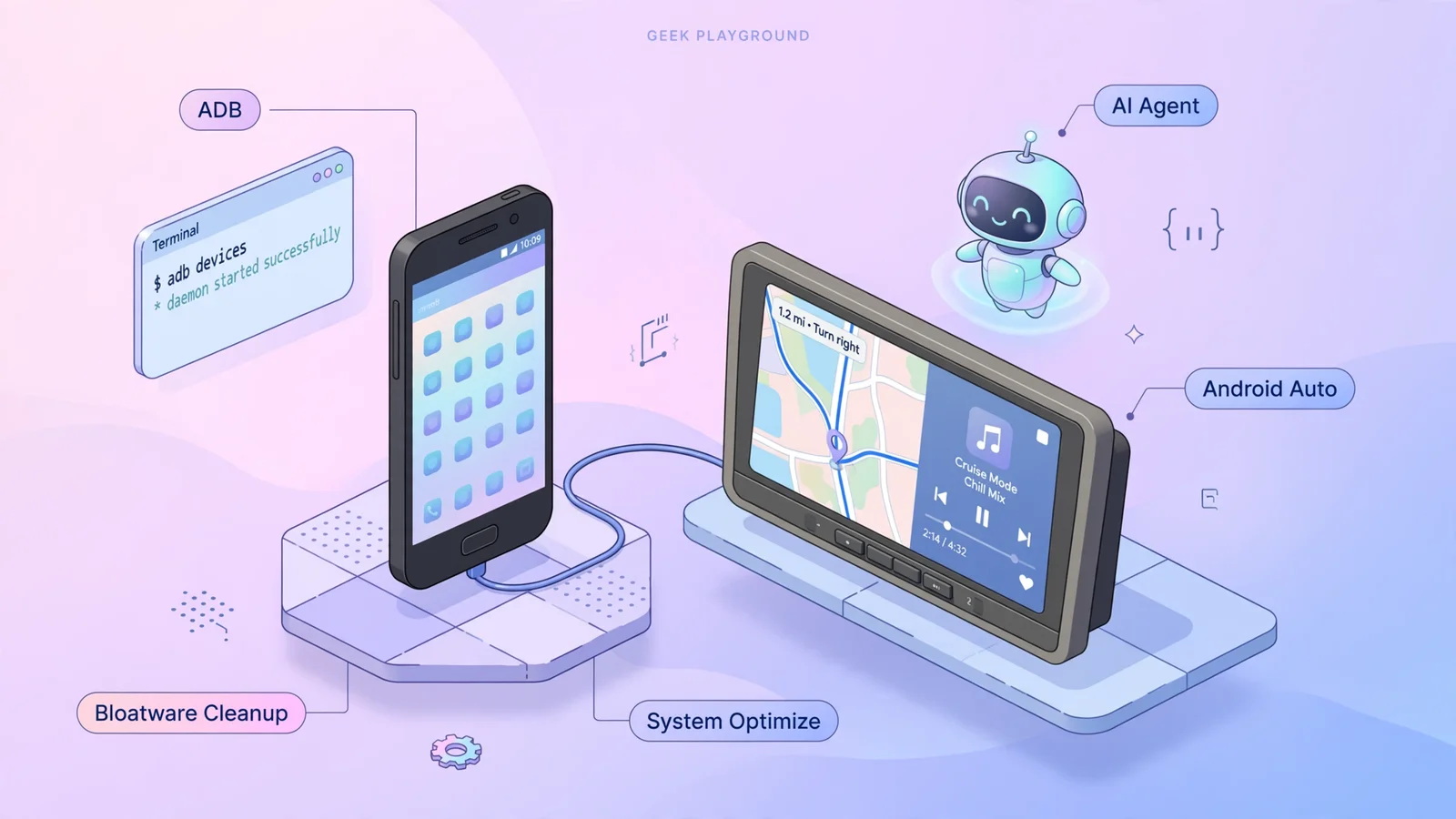
Reviving an Old Android Phone for Car Android Auto: Full Optimization with AI & ADB Without Root
Turn an unused old Android smartphone into a dedicated in-car Android Auto and navigation unit. With the help of an AI Agent over ADB, you can strip factory bloatware, reclaim 2GB of RAM, prevent overheating, and set up smart automations without rooting.
Many of us have an old Android smartphone tucked away in a drawer: an older budget device, a locally branded model like Vsmart, or a past-generation Samsung or Xiaomi phone whose battery life has slightly degraded. In today's terms, their specs are modest: mid-range chips (Helio P60, Snapdragon 600-series), 3GB to 4GB of RAM, and older software builds.
When driving frequently, an appealing idea comes to mind: Why not keep this old phone permanently plugged into the car to handle Android Auto, navigation maps, traffic alerts, and music streaming? You won't need to plug and unplug your primary phone every time you get in and out of the car, you avoid excessive battery wear on your daily driver, and your car dashboard transforms into a dedicated infotainment hub.
Yet in practice, plugging an unprepared old phone into a vehicle often leads to common pain points:
- The system is clogged with manufacturer bloatware running background services, starving available RAM and causing navigation apps to crash while driving.
- Enclosed car cabins get very hot: constant USB charging combined with GPS and active screens makes the phone scorchingly hot, risking thermal throttling or swollen batteries.
- The phone repeatedly reconnects to the car's internal Wi-Fi network (which lacks Internet access) instead of tethering to your primary phone's personal hotspot.
- When turning off the engine, the phone stays awake and drains its battery flat after a couple of days parked.
The traditional tech enthusiast response has been to Unlock the Bootloader, install TWRP Recovery, and flash a custom AOSP ROM. However, that path is time-consuming, risks bricking the device, trips SafetyNet/Play Protect certifications, and many budget models lack reliable community ROMs.
In this guide, we explore a cleaner approach: Pairing an AI Coding Agent with ADB (Android Debug Bridge) to deeply audit the system, purge bloatware, liberate nearly 2GB of RAM, and configure bulletproof automotive automations—completely without root.
/system partition, no voided warranties, completely non-destructive, and 100% reversible at any time.1. Architecture: An AI Agent as Your Systems Engineer
Using ADB manually often requires meticulous command-line research: finding exact package names, verifying dependencies, and executing delicate shell commands. Removing the wrong system service (like SystemUI or Bluetooth daemons) could leave a device in a boot loop.
When letting an AI Agent interact with ADB over a terminal session, the process becomes conversational and verified:
+---------------------+      USB Debugging      +------------------------+
|   Host Computer     | ----------------------> |   Old Android Phone    |
|   + AI Coding Agent |         via ADB         |   (Dedicated Car Unit) |
|   + Platform Tools  |                         |   - Bloatware purged   |
+---------------------+                         |   - RAM/Animations tuned|
                                                |   - MacroDroid granted |
                                                +------------------------+
You simply plug the phone into your computer via USB, enable USB Debugging, and instruct the AI in natural language:
- "Inspect the running background packages that consume memory."
- "Safely debloat manufacturer telemetry and superfluous theme stores."
- "Configure Wi-Fi preferences to strictly favor my personal phone hotspot."
- "Grant system privileges to MacroDroid so it handles ignition triggers automatically."
The AI agent executes precise query commands, validates packages before removal, tunes system parameters, and reports memory gains immediately.
2. Setting Up ADB Connection
Step 1: Install ADB on your computer
On macOS, install Android platform tools via Homebrew:
brew install --cask android-platform-tools
(On Windows or Linux, download the standalone platform-tools archive from the official Android developer portal).
Step 2: Enable USB Debugging on the phone
- Navigate to Settings -> About phone.
- Tap Build number repeatedly 7 times until you see "You are now a developer!".
- Return to Settings -> System -> Developer options.
- Toggle on USB debugging.
Step 3: Connect and Authorize
Connect the phone to your computer with a USB cable. When prompted on the phone screen, check "Always allow from this computer" and tap Allow.
Verify the connection in your terminal:
adb devices -l
Once the terminal outputs your device model labeled with device, ADB communication is established.
3. Real-World Optimization Steps
In this live scenario, the test subject was a Vsmart Active 3 (MediaTek Helio P60, 4GB RAM, running VOS 3.0 / Android 10). Here are the primary techniques applied:
Technique 1: Safe User 0 Debloating
OEMs bundle dozens of proprietary utilities: duplicate security scanners, proprietary account services, theme stores, warranty check-ins, and floating menu overlays. These services wake up the CPU constantly and consume between 500MB and 1GB of memory even when never opened.
Because we avoid rooting, the safest command is pm uninstall -k --user 0 <package_name>. This uninstalls the package for the active user without touching the underlying system partition image.
The AI surveyed installed packages and cleanly disabled over 25 background bloatware services:
for pkg in \
  net.vsmart.vdefense \
  net.vsmart.android.antispy \
  net.vsmart.vinservice \
  net.vsmart.dataprotection \
  com.vsmart.android.vinaccount \
  com.vsmart.android.vsmartwarranty \
  net.vsmart.simulateservice \
  com.vsmart.android.assistivetouch \
  com.vsmart.android.sosmessage \
  com.vinsmart.themestore \
  com.vinsmart.themedesign \
  com.vsmart.android.themewidget \
  com.google.android.apps.wellbeing \
  com.google.android.feedback \
  com.google.android.marvin.talkback
do
  adb shell pm uninstall -k --user 0 "$pkg"
done
adb shell sm fstrim.Technique 2: Snappier UI Animation Scaling
Automotive head-unit responsiveness benefits from snappy, instant transitions. Android defaults to a 1.0x animation scale, which can feel sluggish on older processors.
By halving the global animation multipliers via system settings:
adb shell settings put global window_animation_scale 0.5
adb shell settings put global transition_animation_scale 0.5
adb shell settings put global animator_duration_scale 0.5
App launches, switching between navigation and music players, and split-screen Android Auto cards feel significantly more fluid and immediate.
Technique 3: Eliminating Dead Car Wi-Fi & Disabling Idle Cell Radio
Many modern vehicles and smart dashcams broadcast an ad-hoc Wi-Fi network for local bus telemetry or wireless CarPlay. Crucially, this network has no Internet connection. Android phones plugged into the car often eagerly join this recognized network, instantly cutting off live traffic and GPS route calculation.
The AI resolved this through three targeted adjustments:
1. Forget Vehicle Network: Queried the saved SSID list via adb shell dumpsys wifi and permanently removed the vehicle's internal network profile.
2. Strict Hotspot Priority: Restricted auto-join solely to the driver's primary phone hotspot.
3. Disabling Cellular Radio: Because the phone serves exclusively in the car without a physical SIM card, leaving the cellular modem searching for cell towers at peak transmission wattage produces massive heat and parasitic drain. Disabling this radio entirely keeps the phone significantly cooler.
Technique 4: Whitelisting Crucial Navigation Services
Android's aggressive Doze power manager tends to suspend background services when the display turns off. To ensure voice navigation guidance and speed camera radar alerts always broadcast reliably, core automotive packages were explicitly whitelisted:
adb shell dumpsys deviceidle whitelist +vn.vietmap.live
adb shell dumpsys deviceidle whitelist +com.google.android.projection.gearhead
adb shell dumpsys deviceidle whitelist +com.arlosoft.macrodroid
4. The 4 Essential In-Car Automations
To make this old phone function as a zero-touch appliance—where you never have to reach for a power button or manually touch settings—MacroDroid is the ideal engine.
MacroDroid typically requires root to toggle Wi-Fi and location settings on newer Android versions. Through ADB, we grant elevated system privileges directly:
adb shell pm grant com.arlosoft.macrodroid android.permission.WRITE_SECURE_SETTINGS
adb shell pm grant com.arlosoft.macrodroid android.permission.DUMP
Here are the 4 essential automotive routines configured:
Routine 1: "Engine Start / Ignition On" (Trigger: USB Power Connected)
- Action 1: Turn on Wi-Fi and instantly connect to your phone's personal hotspot.
- Action 2: Enable High-Accuracy GPS.
- Action 3 (Crucial): Drop the phone screen brightness to 0% (minimum) or lock the screen after 15 seconds.
(Rationale: The entire UI renders on the vehicle head unit. An unlit phone screen eliminates thermal buildup, avoids throttling, and allows rapid battery recharge). - Action 4: Boost Media Volume to 100% (standardizing output gain for the car sound system).
Routine 2: "Engine Off / Departure" (Trigger: Power Disconnected)
- Action 1: Instantly turn off Wi-Fi and disable GPS.
- Action 2: Lock display and force immediate deep sleep.
- Result: Minimal standby consumption (less than 1–2% battery drain per 24 hours while parked).
Routine 3: "Deep Discharge Protection" (Long-term Parking)
- Trigger: Battery level falls below 15% AND Power is disconnected.
- Action: Execute automatic Power Off.
- Result: Prevents the battery from completely draining to 0% during prolonged airport or vacation parking. Deep discharge in high-heat vehicle environments is the primary cause of irreversible lithium battery swelling.
Routine 4: "Auto-Resume Audio"
- Trigger: USB Power Connected + 5-second delay (allowing Android Auto handshake to complete).
- Action: Dispatch
Media: Playto seamlessly resume your playlist or podcast where you left off.
5. Lessons Learned & Anti-Patterns
During this project, two theoretical ideas were tested and deliberately avoided:
+------------------------------------+-------------------------------------------+
| Attractive Idea in Theory          | Practical Car Pitfall                     |
+------------------------------------+-------------------------------------------+
| Install Home Assistant Companion   | Vehicle is mobile; constant background    |
| for live vehicle telemetry tracking| server pings consume memory and raise heat|
+------------------------------------+-------------------------------------------+
| Auto-farming e-commerce coins      | No internet when car is off; accessibility|
| on Shopee/Lazada via macros        | auto-clicks trigger anti-fraud account bans|
+------------------------------------+-------------------------------------------+
- Avoid Overloading with Background Telemetry: Installing the Home Assistant companion app was initially considered for parking GPS tracking. However, because the phone only connects to the internet when the engine is running and tethered, background retry loops when parked consume idle power. Keeping the device strictly dedicated to Android Auto and navigation yields the greatest stability.
- Do Not Turn a Car Phone into an Auto-Clicker: Automating e-commerce daily check-ins might sound neat, but parked vehicles have zero connectivity. Furthermore, modern e-commerce anti-fraud mechanisms heavily monitor Accessibility service usage; automated taps risk freezing your primary shopping account with fraud flags.
6. Conclusion
With a simple USB cable, ADB platform tools, and an AI coding agent acting as a system copilot, an obsolete smartphone was completely revitalized:
- Completely purged of bloatware and unnecessary background daemons.
- Nearly 2GB of clean headroom for heavy mapping and streaming workloads.
- Intelligent ignition triggers that handle Wi-Fi, screen dimming, and battery safety.
- Zero root vulnerabilities, zero custom ROM instability, and no voided device integrity.
Before discarding or retiring an old Android handset, consider giving it a second life on your dashboard.