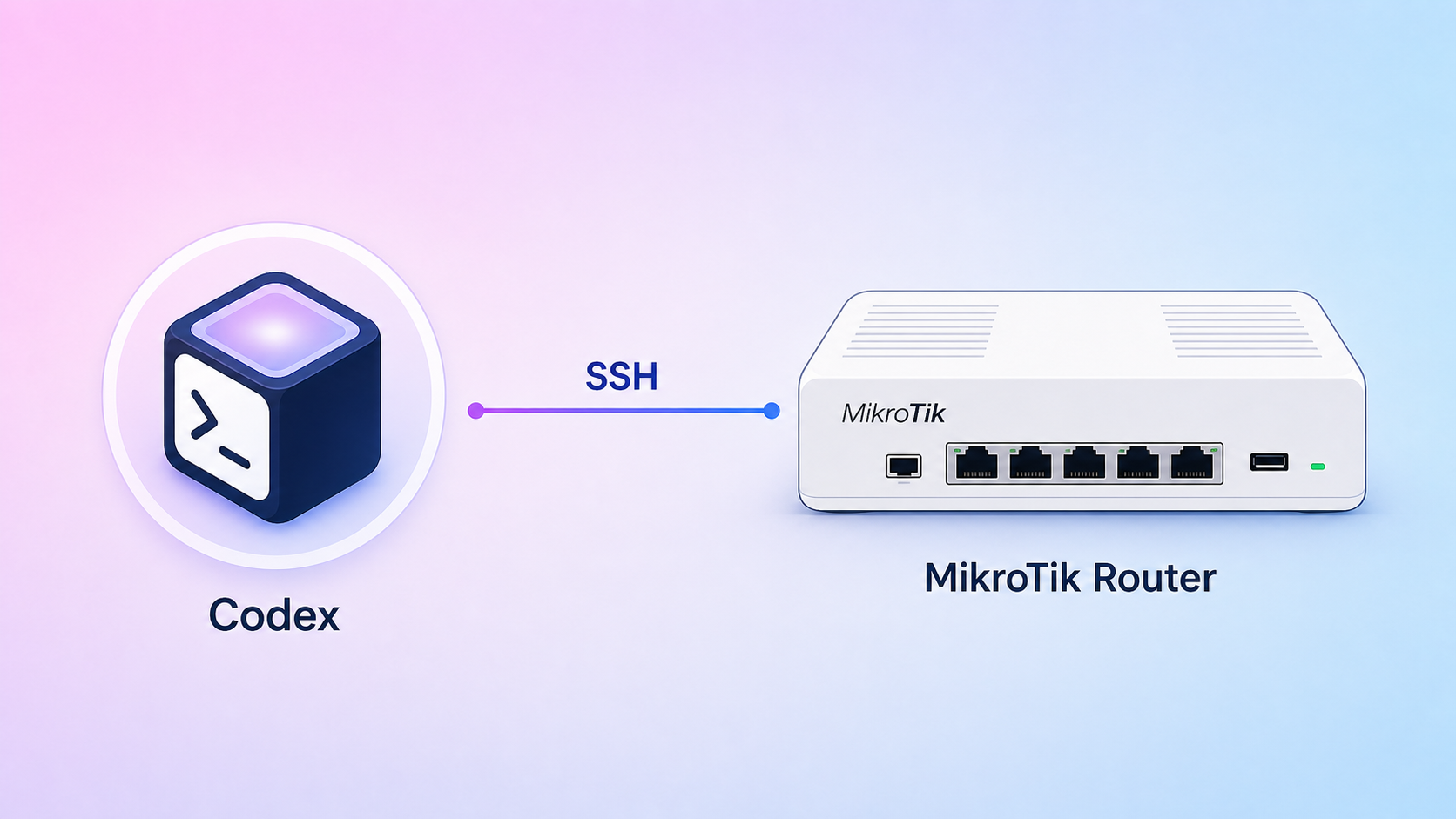
Using Claude/Codex to Optimize MikroTik Routers
Home routers are usually only touched when there's a network issue: intermittent connection, high ping, a congested WAN link, slow DNS, or Wi-Fi repeatedly dropping in certain corners of the house. Previously, to handle these issues, you had to manually read every rule in WinBox, run speed tests yourself, troubleshoot firewall/NAT/routes, and then remember what you changed so you could revert it.
Claude/Codex are quite suitable for this task. MikroTik is a popular device, RouterOS has a clear CLI, and there is abundant documentation, so AI models usually have a good foundation. The practical usage doesn't need to be overly complicated: enable SSH, let Codex connect to the router, ask it to create a backup first, and then let it audit and optimize according to your goals.
It sounds a bit risky, and it is risky. But if you've accepted letting AI manipulate the router, the process should be pragmatic: backup first, measure first, fix with logs, measure again after. Don't turn it into a 10-step review process where the user ultimately still has to do everything manually.
1. Enable SSH for Codex to access the router
On MikroTik, enable SSH and restrict it to the management LAN:
/ip service enable ssh
/ip service set ssh address=192.168.88.0/24
If your home LAN doesn't use 192.168.88.0/24, change it to your actual subnet. You shouldn't expose SSH to the public Internet. If you want to be neater, create a temporary user for this session and delete it when done.
/user add name=codex-maintenance group=full password="temporary-strong-password"
Then open Codex/Claude Code on a machine on the same network as the router and provide the SSH connection details. The rest should be delegated with a clear objective prompt:
You are authorized to SSH into the MikroTik router to optimize Internet performance.
The absolute first thing you must do is create a backup and export the configuration.
Then measure the baseline, diagnose root causes, apply reasonable changes,
and run before/after checks. Log all executed commands.
Do not disable main firewalls or routes without a clear rollback plan.
)
2. Force Codex to create a backup before editing
This is a step that cannot be skipped. But instead of copying each command yourself, just ask Codex to do it right after connecting:
/system backup save name=before-codex-change
/export file=before-codex-change
The .backup file helps with quick rollbacks on the same device. The .rsc file allows Codex to read the configuration in text format, making it easy to diff and explain. If the router has a PPPoE password, VPN secret, or sensitive tokens, remind Codex not to print secrets to the log/chat.
The important point is: if you lose internet access after making changes, you still have a way back. Without a backup, using AI to optimize your router turns into a game of chance.
3. Let Codex measure the current state first
After the backup is complete, Codex should run a series of baseline checks. A realistic working session might look like this:
Diagnosed the issue: ran speedtest-cli first.
Checked DNS resolution times.
Checked MTU, packet loss, Wi-Fi signal/interference.
Checked WAN route, NAT, firewall counters and DHCP/DNS settings.
Found 3 issues.
Some checks can be run from the computer running Codex, while others are run directly on the MikroTik via SSH:
speedtest-cli
ping -c 20 1.1.1.1
ping -c 20 8.8.8.8
/ping 1.1.1.1 count=20
/tool traceroute 1.1.1.1
/ip dns print
/ip route print detail
/ip firewall nat print stats
/ip firewall filter print stats
/interface monitor-traffic ether1 once
If the router has Wi-Fi, Codex can also check the registration table, signal strength, channel, noise floor, and retry rates. If your house uses separate APs, the Wi-Fi part might reside on another device, but Codex can still read the status from a controller or dashboard if given permission.
)
4. Let Codex fix obvious issues
This is where AI truly brings value. It reads multiple outputs simultaneously, compares them with the current configuration, and points out discrepancies. For example:
Found 3 issues:
1. DNS resolver is responding slowly, cache size is too low.
2. MTU between PPPoE/WAN and LAN mismatches, showing signs of fragmentation.
3. Several old NAT/firewall rules still match traffic but no longer serve their intended purpose.
Depending on the actual situation, Codex might do things like:
- Optimize DNS cache and upstream resolvers.
- Fix MTU/MSS clamping for PPPoE or VPN.
- Clean up unused, old DHCP leases/profiles.
- Kill or throttle background processes/devices hogging bandwidth if the issue is with a machine in the LAN.
- Check queues/simple queues that might be bottlenecking speed.
- Clean up stale NAT/firewall rules (must still log before/after).
- Optimize mDNS if the house has many Apple/Home Assistant/IoT devices.
- Rearrange route distances or failover rules if multiple WANs aren't functioning correctly.
For instance, the log after execution might look like this:
Removed stale network locations/profiles.
Killed or throttled bandwidth-hogging background processes.
Optimized mDNS.
Adjusted DNS cache and upstream resolver.
Fixed MTU/MSS mismatch for WAN path.
Ran before/after speed tests and latency checks.
These changes won't always reside entirely on the MikroTik. Sometimes the root cause is a computer syncing to the cloud, Docker pulling images, a camera uploading, a NAS running backups, or a phone dominating the Wi-Fi. The beauty of Codex is that it can check both the router and the local machine if you grant it permission.
5. Measure again and force Codex to report before/after
After applying fixes, ask Codex to rerun the initial test suite. Don't just ask "are you done?", force it to provide before/after results:
Before:
- Download: 82 Mbps
- Latency: 42 ms
- Packet loss: 1.8%
- DNS lookup: 180-260 ms

After:
- Download: 186 Mbps
- Latency: 16 ms
- Packet loss: 0%
- DNS lookup: 25-40 ms
If the metrics don't improve, rollback or ask Codex to continue investigating. If they improve but involve risky changes like firewall/route/NAT, ask it to precisely log the executed commands and how to revert to the old configuration.
)
Ready-to-use sample prompt
You can give this exact prompt to Codex after enabling SSH:
Connect to the MikroTik via SSH and optimize Internet performance.

Goals:
- Create a backup/export before making changes.
- Measure speed, latency, DNS, MTU, and packet loss before making changes.
- Check WAN routes, NAT, firewall counters, DNS/DHCP, queues, and Wi-Fi (if applicable).
- Identify a maximum of 3-5 issues with evidence.
- Apply reasonable changes, prioritizing low-risk ones first.
- Do not delete major rules without backing up and logging how to rollback.
- Rerun the same test suite after fixing.
- Report before/after results and list all executed commands.
Cleaning up computers using the same approach
This same logic can be applied to cleaning junk files or optimizing the network on a personal computer. Let Codex read the machine's status, measure first, find bandwidth-hogging processes, clean old caches/profiles, optimize DNS/mDNS, and then measure again. The difference is that with a computer, you should prioritize moving items to the Trash rather than deleting them outright.
With a router, the vital rule is to backup. With a computer, the vital rule is to never delete user data unless absolutely certain.
Conclusion
Using Claude/Codex to optimize a MikroTik doesn't need to turn into an overly heavy network audit project. The reality is: enable SSH, let the AI in, force it to backup first, measure the baseline, fix the obvious issues, and then measure again.
This is still a risky endeavor because a router is an infrastructure device. But if you have accepted letting AI manipulate it, let it play the proper role of a technician: self-collect data, self-create backups, self-deploy, self-verify results, and leave behind logs clear enough for you to rollback when needed.