Moving From Subscription Apps to Local-First Data Ownership
In recent years, almost every software wants to turn into a subscription.
Notes are paid monthly. Task managers are paid monthly. Password managers are also paid monthly. File storage apps, document scanner apps, journaling apps, bookmark manager apps, AI assistant apps... everything is a few small dollars a month. Looking at each item individually, it's not a lot, but combined it becomes a regular expense, and more importantly: my personal data is locked within many different services.
The problem is not just about money.
The problem is that every time I want to change tools, I have to ask myself:
- Can the data be exported?
- Once exported, can it still be read normally?
- What if the app stops working?
- What if the price increases?
- If I want to let AI read my notes, whose cloud do I have to put the data on?
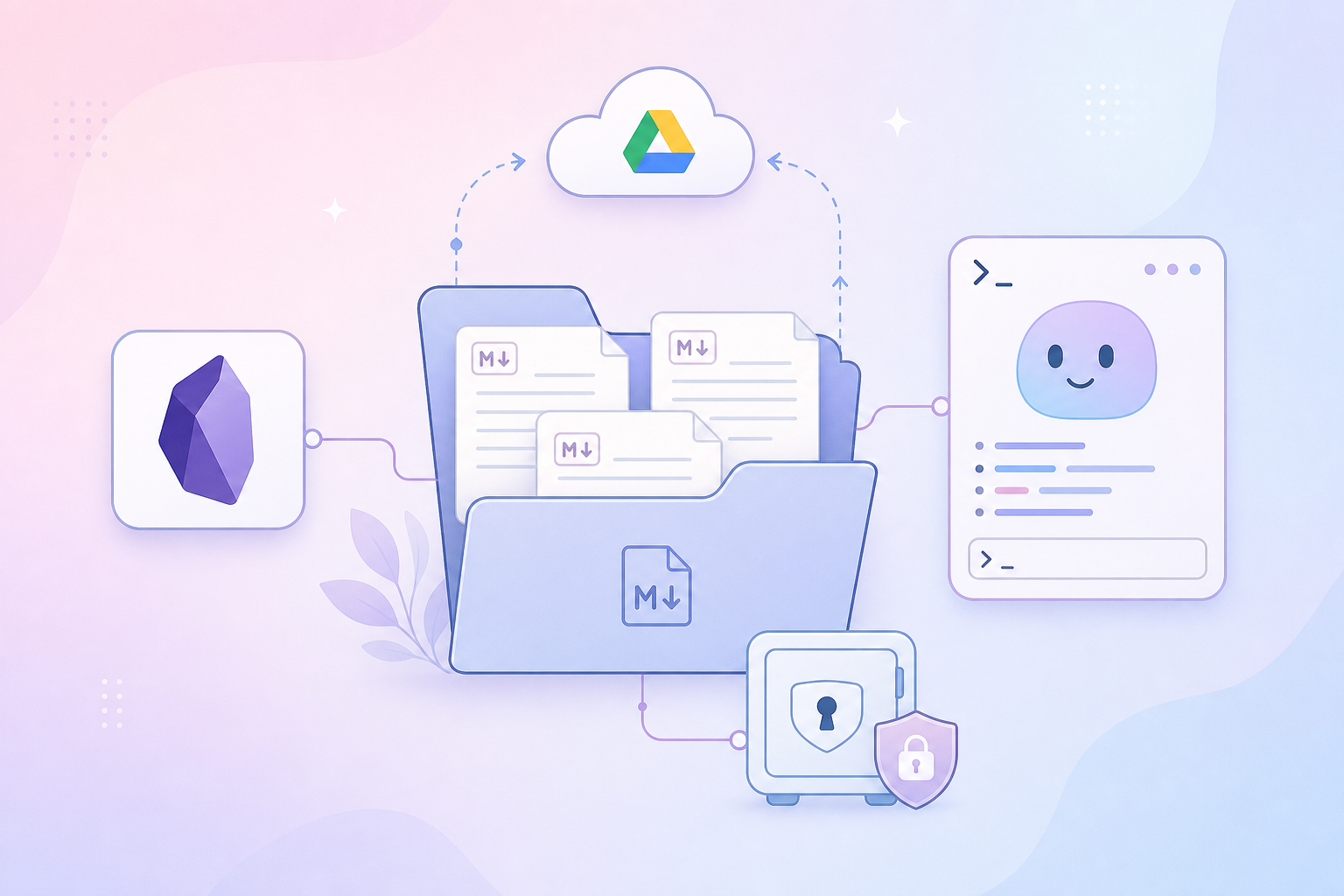
After a while of using many different tools, I increasingly lean towards a simpler philosophy: important data should reside in local files first, sync is an auxiliary layer, the app is just an interface layer.
In other words: I don't want to "own an account". I want to own the data.
Method 1: manage all notes with a local folder
Instead of using a closed note app, I can manage all my notes using a normal folder on my computer.
For example:
Notes/
├── 1-Projects/
├── 2-Areas/
├── 3-Resources/
├── 4-Archive/
└── attachments/
Inside are Markdown files:
financial-plan-2026.md
personal-website-ideas.md
home-wifi-password-not-saved-here.md
server-maintenance-checklist.md
Markdown is an extremely simple format: it can be opened with Obsidian, VS Code, iA Writer, Typora, or even TextEdit. No need for a separate server, no database needed, no complex exports needed.
The most important point: if tomorrow the note app you are using disappears, your files remain intact.
This is a huge difference compared to many subscription apps. With closed apps, you often have to trust that they will keep the server stable, keep the price reasonable, and keep the export feature decent. With a local folder, that trust is significantly reduced, because the data resides right on your machine.
Sync via Google Drive: good enough for most needs
Local-first does not mean only using it on one machine.
The simplest way is to put the notes folder in Google Drive:
Google Drive/My Drive/Notes/
Then install Google Drive on Mac, Windows, or Linux, so this folder automatically syncs between machines.
At this point, the model becomes:
Local file on machine
        ↓
Google Drive sync
        ↓
Local file on another machine
Google Drive only acts as a file transporter. The tools to read, write, organize, search, and extend features are chosen by me.
If one day I don't want to use Google Drive anymore, I can switch to iCloud Drive, Dropbox, Syncthing, Nextcloud, or rsync to a home NAS. The data structure remains normal Markdown files.
This is a subtle but very valuable difference: I depend on a universal file standard, not on a specific app.
Obsidian: beautiful interface for data in my hands
Obsidian is a very fitting choice for this model, because Obsidian doesn't force me to put notes on their server. Obsidian opens a local folder directly, called a vault.
You just need to:
- Create a notes folder.
- Open that folder with Obsidian.
- Write notes in Markdown.
- Let Google Drive or your chosen sync tool handle the synchronization.
And that's it.
What I like about Obsidian is that it doesn't try to turn data into something only it understands. Notes are still .md. Attachments are still image, PDF, and audio files residing in the folder. Wikilinks like [[note-name]] might be its own syntax, but fundamentally they remain text, reading them with another app doesn't result in data loss.
For personal needs, this setup alone is enough to replace many subscription apps:
- note app
- personal wiki
- project notebook
- bookmarked links with descriptions
- technical journal
- prompt library
- personal SOPs
- knowledge base for AI Agents
Community plugins: upgrade whatever you want
One reason many people pay for subscriptions is because cloud apps often have many convenient features: kanban, calendar, graph, templates, tasks, daily notes, publishing, AI, beautiful exports...
Obsidian solves this with plugins.
You can install community plugins to add:
- Kanban boards for personal projects.
- Dataview to query notes like a database.
- Calendar and Periodic Notes for daily/weekly notes.
- Templater to create notes from templates.
- Excalidraw for drawing diagrams.
- Tasks for managing todos.
- Git for version controlling the vault.
The great thing is that I don't have to buy a whole bulky set of features. Install what you need. Discard what you don't. Data stays in the local folder.
Of course, community plugins also have risks: a plugin might stop being maintained, might bug out after an update, or might process data in its own way. But this risk is easier to manage if you stick to the principle: the core is still Markdown, plugins are just a productivity layer.
Perfect compatibility with AI
This is where the local folder model becomes extremely powerful in the AI Agent era.
An AI Agent works best when it can read real files, search in real folders, edit content with real diffs, and create new documents following existing structures. A local Markdown vault fulfills this almost perfectly.
For example, you can ask AI:
- "Read all notes about Home Assistant and compile them into a maintenance checklist."
- "Find the unfinished articles in the Geek Playground folder."
- "Create a new note following the vault's frontmatter format."
- "Turn scattered ideas in daily notes into a blog post outline."
- "Check which wikilinks are broken."
- "Summarize the important decisions in this project."
With closed cloud apps, AI often has to go through an API, a separate plugin, OAuth, or manual copy-pasting. With a local folder, AI just needs folder read access.
More importantly: you can control the scope. Let AI read whatever folder you want it to read. No need to grant full access to your cloud account if you don't want to.
Passwords and sensitive information: same philosophy, but must be more serious
Notes can be stored in Markdown, but passwords should not be.
You should not save passwords, API keys, recovery codes, private keys, or seed phrases in regular notes, even if the folder is on your personal computer. Markdown is very easy to read, easy to sync, easy to be indexed, easy to be accidentally copied, and easy to be fed into too broad of an AI context.
For passwords, I prefer the model of Enpass over many cloud-first password managers: the vault is stored locally, data is encrypted, and you can choose to sync via your own cloud like Google Drive, iCloud, OneDrive, Dropbox, Box, Nextcloud, or WebDAV. Enpass also clearly states that the sync mechanism does not require sending data to Enpass servers; the cloud storage only holds the encrypted vault.
Regarding cost, to be precise: Enpass is not unconditionally free for everything. The desktop app might start free, but mobile/unlimited/premium needs may require payment or a lifetime purchase depending on the time. But in terms of product philosophy, it still differs from the subscription-first password manager group in an important aspect: your data is not forced to reside within the password manager provider's own cloud.
The model here is quite similar to notes:
Encrypted local Enpass vault
        ↓
Google Drive sync
        ↓
Encrypted local Enpass vault on another machine
Google Drive does not know your passwords. It only sees an encrypted vault file. The Enpass app on your device is the only place that opens the vault using the master password.
Clearly separate notes and secrets
A practical setup should be divided into two layers:
Notes, documents, SOPs, ideas
- Save using Markdown.
- Sync via Google Drive or a tool of your choice.
- Open with Obsidian.
- Let AI Agents read when needed.
Passwords, API keys, login credentials, sensitive info
- Store in Enpass or an equivalent encrypted password manager.
- Do not copy plaintext into notes.
- Do not commit into Git.
- Do not take screenshots containing secrets.
- Only extract the exact field needed, exactly when needed.
This separation helps AI still work with your personal system, without turning your entire digital life into a pile of plaintext sitting in context.
Enpass CLI: the bridge for AI Agents to work with credentials
A practical problem arises when using AI Agents: many tasks require credentials.
For example:
- AI needs to log into an internal service.
- AI needs to call an API with a key currently stored in a password manager.
- AI needs to find the right account by domain or email.
- AI needs to run a deploy script that requires a token.
The worst way is copying passwords into chat. Another bad way is saving passwords into a .env file and forgetting it is sitting in a repo.
A better direction is using a CLI so AI can query the password manager according to controllable rules.
The repository leolionart/enpass-cli is designed exactly for this need: read a local Enpass vault from the command line, search for entries without exposing passwords, and then only get the exact credential when needed. It is a fork from hazcod/enpass-cli, not an official Enpass product.
Install using Go:
go install [github.com/leolionart/enpass-cli/cmd/enpass-cli@latest](https://github.com/leolionart/enpass-cli/cmd/enpass-cli@latest)
On macOS if you want the binary to reside in the Homebrew path:
GOBIN=/opt/homebrew/bin go install [github.com/leolionart/enpass-cli/cmd/enpass-cli@latest](https://github.com/leolionart/enpass-cli/cmd/enpass-cli@latest)
Declare vault path:
export ENPASS_VAULT="/path/to/vault"
Search first, password not yet exposed:
enpass-cli -vault="$ENPASS_VAULT" search github
Once the correct entry is identified, get the exact field needed:
enpass-cli -vault="$ENPASS_VAULT" -field login get github
enpass-cli -vault="$ENPASS_VAULT" get github
If you want JSON output for automation:
enpass-cli -vault="$ENPASS_VAULT" -json get github
With an AI Agent, the pattern I like is:
- Agent uses
searchto find the suitable entry, without reading the password. - If there are multiple results, the agent reports back so I can choose or use an additional filter.
- Agent only uses
getwhen a specific credential is needed. - The master password is not in command arguments, not in repos, and not in notes.
- If non-interactive automation is needed, the master password should be retrieved from the OS's secret manager, e.g., macOS Keychain, then passed via an environment variable during a short-lived runtime.
This is not "giving all passwords to AI". This is creating a narrow, procedural gateway for AI to fetch exactly the necessary information while working.
Minimum setup I recommend
If you want to start gradually breaking free from subscriptions, you don't need to do everything at once. You can follow this order:
1. Create a local notes vault
Google Drive/My Drive/Notes/
Open this folder with Obsidian. Create a few basic folders:
1-Projects/
2-Areas/
3-Resources/
4-Archive/
attachments/
2. Transfer important notes to Markdown
No need to migrate your entire history immediately. Transfer long-term value items first:
- personal documents
- operational checklists
- installation guides
- article ideas
- important decisions
- knowledge base for AI
3. Standardize secret rules
Create a very clear rule:
Notes do not contain plaintext passwords.
If a note needs to mention a credential, only record metadata:
Credential: Enpass entry "GitHub - personal"
Purpose: deploy blog
Do not record the real password.
4. Use Enpass for passwords
Create an Enpass vault, enable sync via Google Drive if you need multiple devices. With extremely sensitive data, consider adding periodic offline backups and do not rely solely on a single cloud provider.
5. Add CLI for AI Agent
Install enpass-cli, test with your vault, then create an internal wrapper so the AI is only allowed to use safe commands:
searchgetby specific filter- do not use write/delete commands unless tested on a dummy vault
If done more carefully, the wrapper can log access metadata, for example, time, entry title, command, but absolutely do not log passwords.
Things that still require caution
Local-first is not a miracle.
You still need to think about backups, disk encryption, computer security, AI Agent access permissions, and the risk of accidentally syncing the wrong files. If your laptop is lost and the disk isn't encrypted, local-first won't save you. If you copy passwords into notes and sync them everywhere, Enpass won't save you either.
Some principles I find worth keeping:
- Enable FileVault on macOS or equivalent disk encryption.
- Do not store secrets in Markdown.
- Do not let AI read the entire home directory if it only needs one project folder.
- Separate personal vault and work vault if possible.
- Periodically back up to a location other than Google Drive.
- With password managers, always remember the master password and keep a separate recovery plan.
Conclusion: subscriptions aren't bad, but data must belong to you
Subscriptions aren't always wrong. There are services I am still willing to pay for if they provide continuous value: good infrastructure, good security, good sync, good support, genuinely necessary new features.
But with core personal data like notes, SOPs, documents, passwords, API keys, I want to start from a different question:
If tomorrow this app disappears, will my data survive?
For notes, the best answer is Markdown in a local folder, synced by a cloud of my choice, opened with Obsidian or any editor.
For passwords, a better answer is a local-first encrypted vault like Enpass, synced via my own cloud, and if needed for AI Agents to work, using a controlled CLI like enpass-cli.
It's not about fighting against all subscriptions. It's about putting subscriptions back in their proper place: a utility service, not a lock keeping my data.